Azure DevOps
Create Pipelines
You need to create two pipelines in Azure DevOps, using the YAML files provided in your project.
Pipeline 1: Check Pull Request
This pipeline will run validation checks on every Pull Request.
- Go to Pipelines
- Select New pipeline
- Select Azure Repos Git
- Select your repository
- Select Existing Azure Pipelines YAML file
- Select path
azure-pipelines-checks.yml(select your work git branch if needed) - Click on Continue
- Click on the arrow next to "Run" and select Save
- Rename the pipeline to Check Pull Request (click on the name to edit)
Pipeline 2: Deploy to org
This pipeline will deploy changes to the Salesforce org when a Pull Request is merged.
- Go to Pipelines
- Select New pipeline
- Select Azure Repos Git
- Select your repository
- Select Existing Azure Pipelines YAML file
- Select path
azure-pipelines-deployment.yml(select your work git branch if needed) - Click on Continue
- Click on the arrow next to "Run" and select Save
- Rename the pipeline to Deploy to org (click on the name to edit)
Configure Triggers and Policies
Check Pull Request Pipeline
By default, Azure Pipelines might trigger on every commit to any branch. We want to restrict this and ensure it runs for Pull Requests.
-
Disable Continuous Integration trigger:
- Go to Pipelines -> Select "Check Pull Request" pipeline -> Edit
- Open the menu ⋮ (Triggers)
- Tick Override the YAML continuous integration trigger from here
- Select Disable continuous integration
- Save
-
Configure Branch Policy:
- Go to Repos -> Branches
- Click on the ... menu next to your major branches (e.g.,
integration,master, ...) - Select Branch policies
- In Build Validation, click +
- Select your "Check Pull Request" pipeline
- Keep default settings and Save
- (Optional but recommended) In Branch policies, enable Require a minimum number of reviewers and Check for linked work items if you want to enforce best practices.
Deploy to org Pipeline
This pipeline should run automatically when changes are pushed (merged) to major branches.
- Configure Branch Filters:
- Go to Pipelines -> Select "Deploy to org" pipeline -> Edit
- Open the menu ⋮ (Triggers)
- In Branch filters, tick Override the YAML continuous integration trigger from here
- Ensure Enable continuous integration is checked
- Include all your major branches (e.g.,
integration,uat,production...) - Save
Azure Pull Request notes
In order to avoid to have to open job logs to see deployment errors, sfdx-hardis can post them as a thread on the Pull Request UI
Global configuration
To use this capability:
-
A build policy must be defined
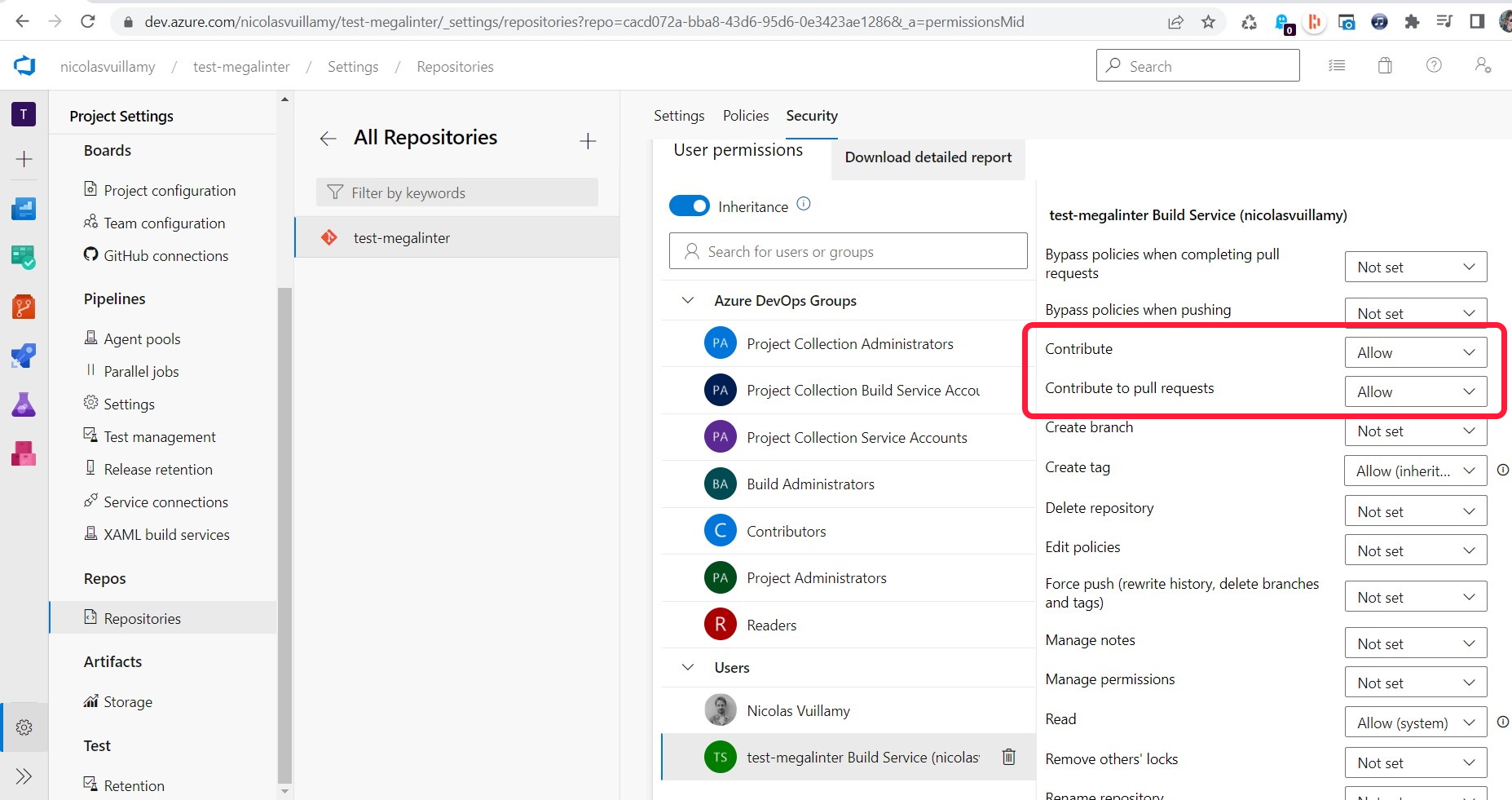
- You must allow Contribute and Contribute to Pull Requests on your Build Service (Settings -> Repositories -> Select your build service)
Tech Work Item
If you want to use Flow Diff (visual diff of flow differences):
-
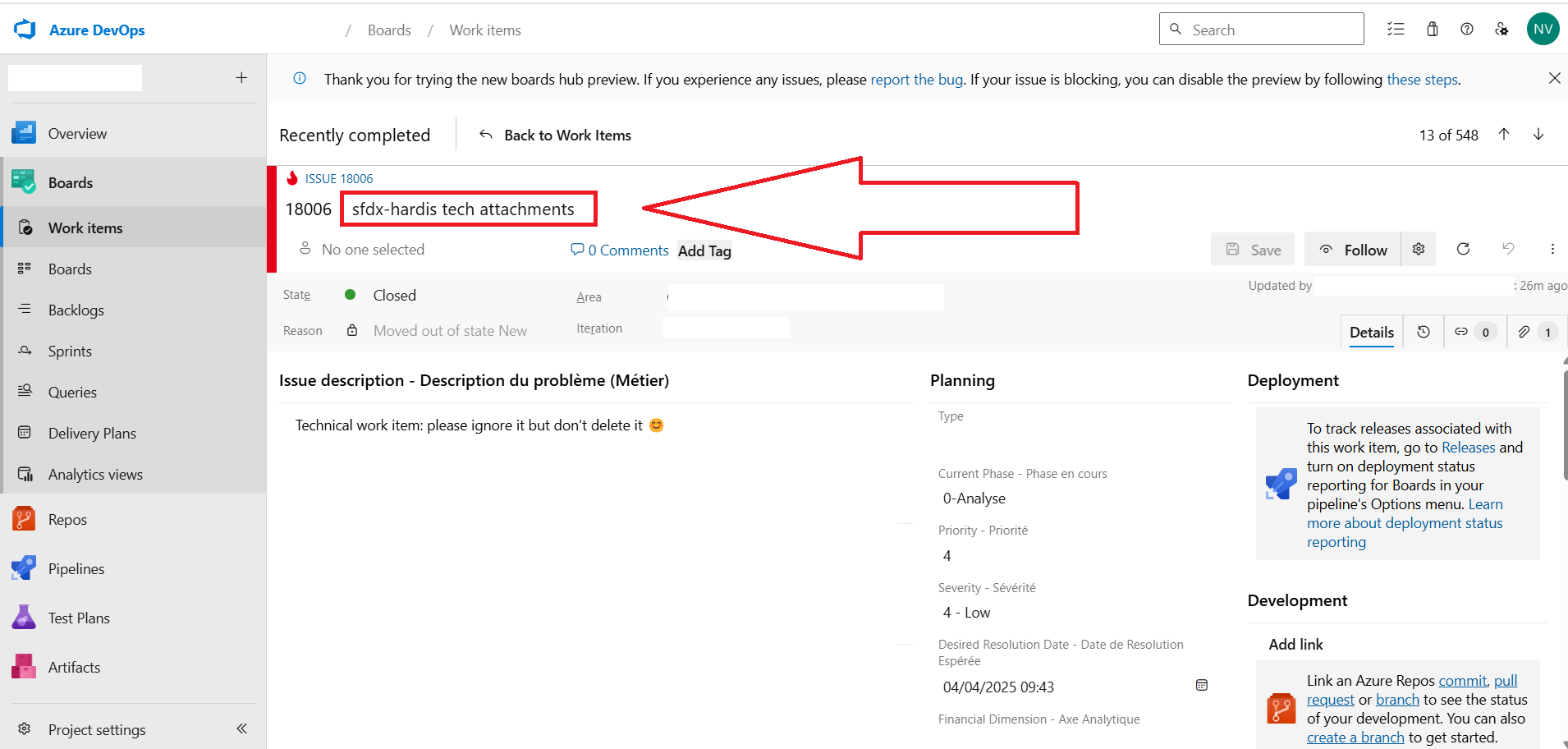
Create an Azure boards ticket exactly named sfdx-hardis tech attachments. IT will be used to link uploaded images.
- If you prefer to name it differently, define variable
AZURE_ATTACHMENTS_WORK_ITEM_IDwith the number of your ticket as value.
- If you prefer to name it differently, define variable
- An Azure Work item can have only 100 attached images, so frequently delete old image attachments, or delete the ticket then recreate it with the same name.
Examples
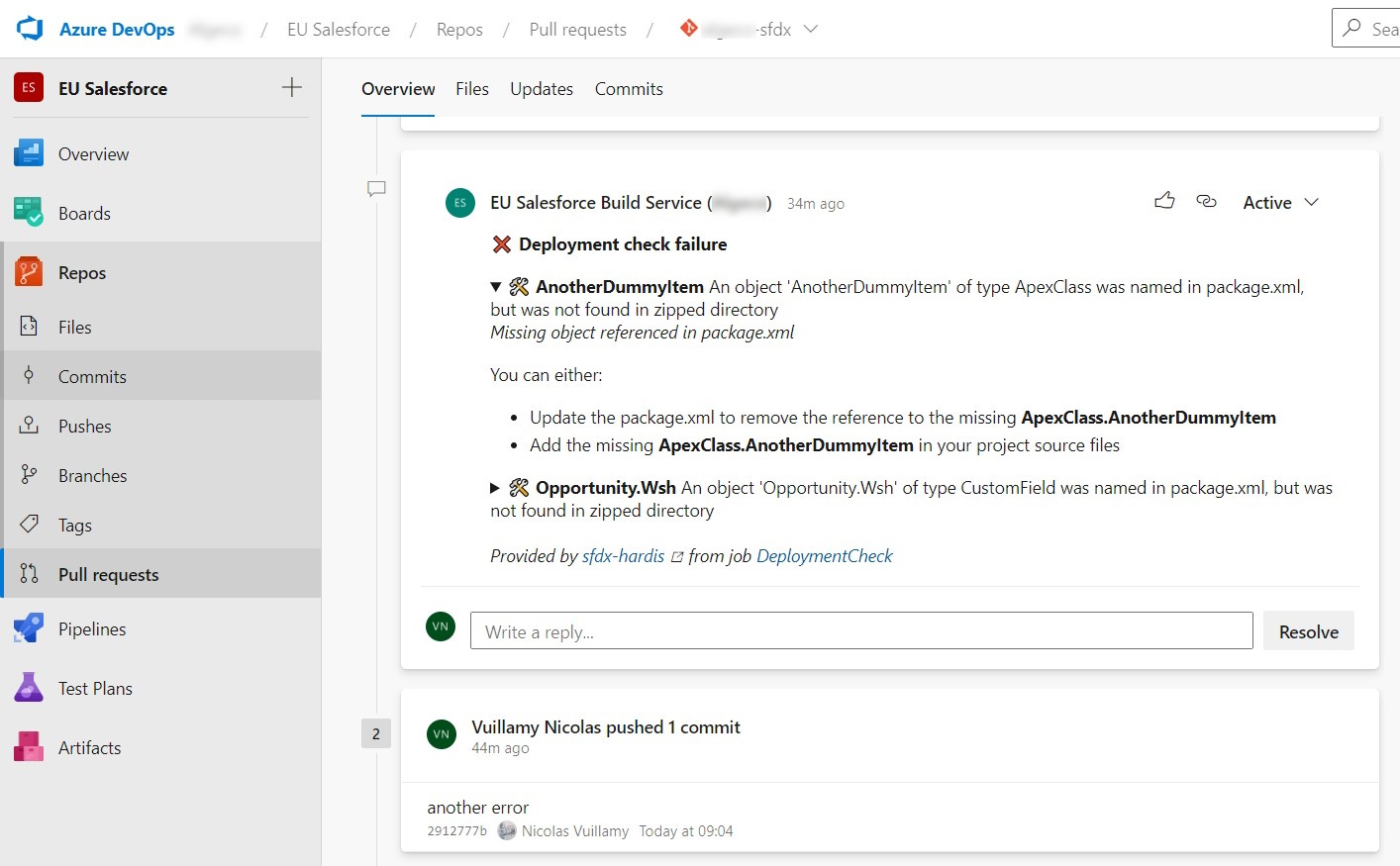
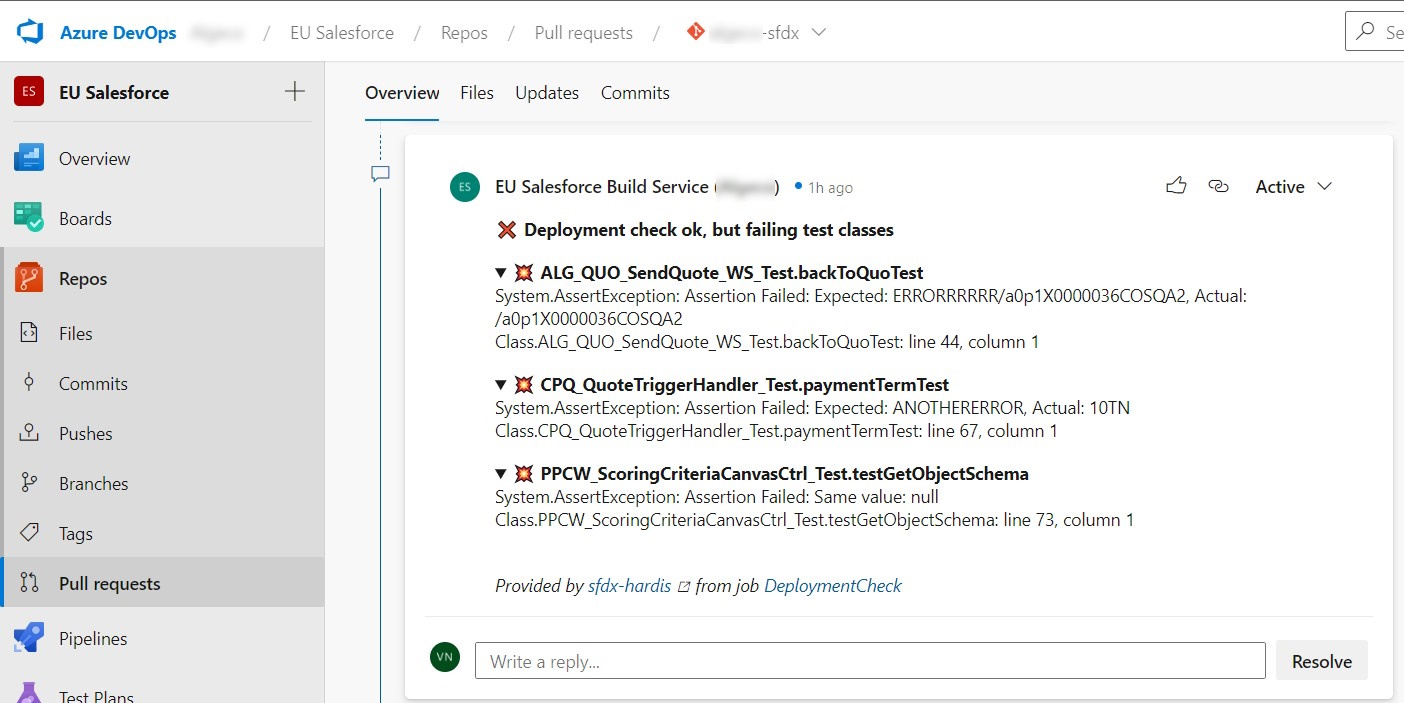
Everytime you will make a pull request, the CI job will post its result as comment !
- Example with deployment errors
- Example with failing test classes
- Example when all is ok :)

Notes:
- This integration works with sfdx-hardis pipeline, but also on home-made pipelines, just call sf hardis:project:deploy:start instead of
sf project:deploy:start!
- This integration use the following variables:
- SYSTEM_ACCESSTOKEN: $(System.AccessToken)
- CI_SFDX_HARDIS_AZURE_TOKEN: $(System.AccessToken)
- SYSTEM_COLLECTIONURI: $(System.CollectionUri)
- SYSTEM_JOB_DISPLAY_NAME: $(System.JobDisplayName)
- SYSTEM_JOB_ID: $(System.JobId)
- SYSTEM_PULLREQUEST_PULLREQUESTID: $(System.PullRequest.PullRequestId)
- SYSTEM_TEAMPROJECT: $(System.TeamProject)
- BUILD_BUILD_ID: $(Build.BuildId)
- BUILD_REPOSITORY_ID: $(Build.Repository.ID)
- AZURE_ATTACHMENTS_WORK_ITEM_ID (optional: identifier of the Work Items used to attach images)