On GitHub
Create a Pull Request on GitHub
Once your branch is pushed (see Publish your User Story), create a Pull Request to ask for your work to be merged into the target major branch. At the end of the Save / Publish command, sfdx-hardis shows a Create Pull Request button that opens the right page directly. Otherwise, follow these steps.
-
Open your repository in your web browser (example:
https://github.com/mycompany/dreamhouse-lwc). -
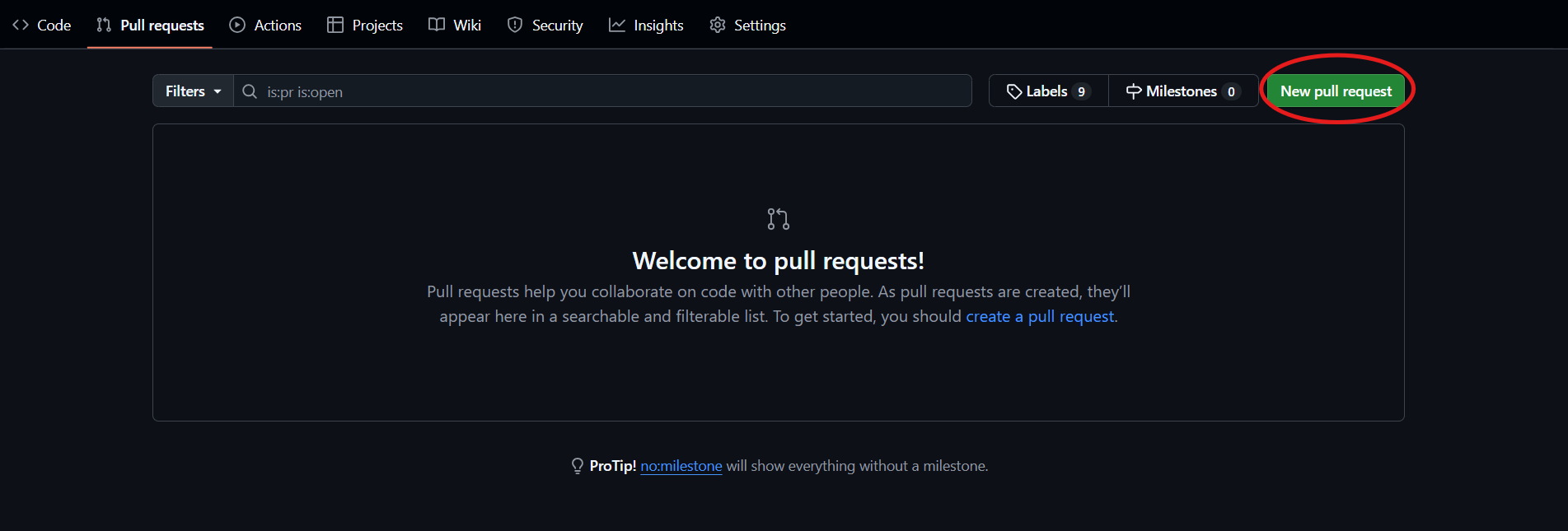
Go to the Pull requests tab and click New pull request.
-
Select the base branch (the target major branch, for example
integration) and the compare branch (your User Story branch). Click Create pull request.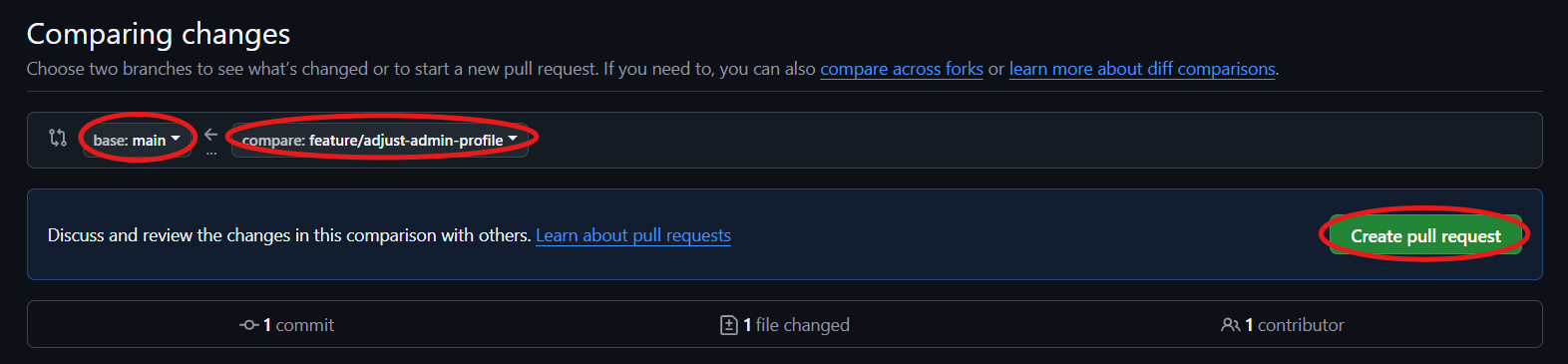
-
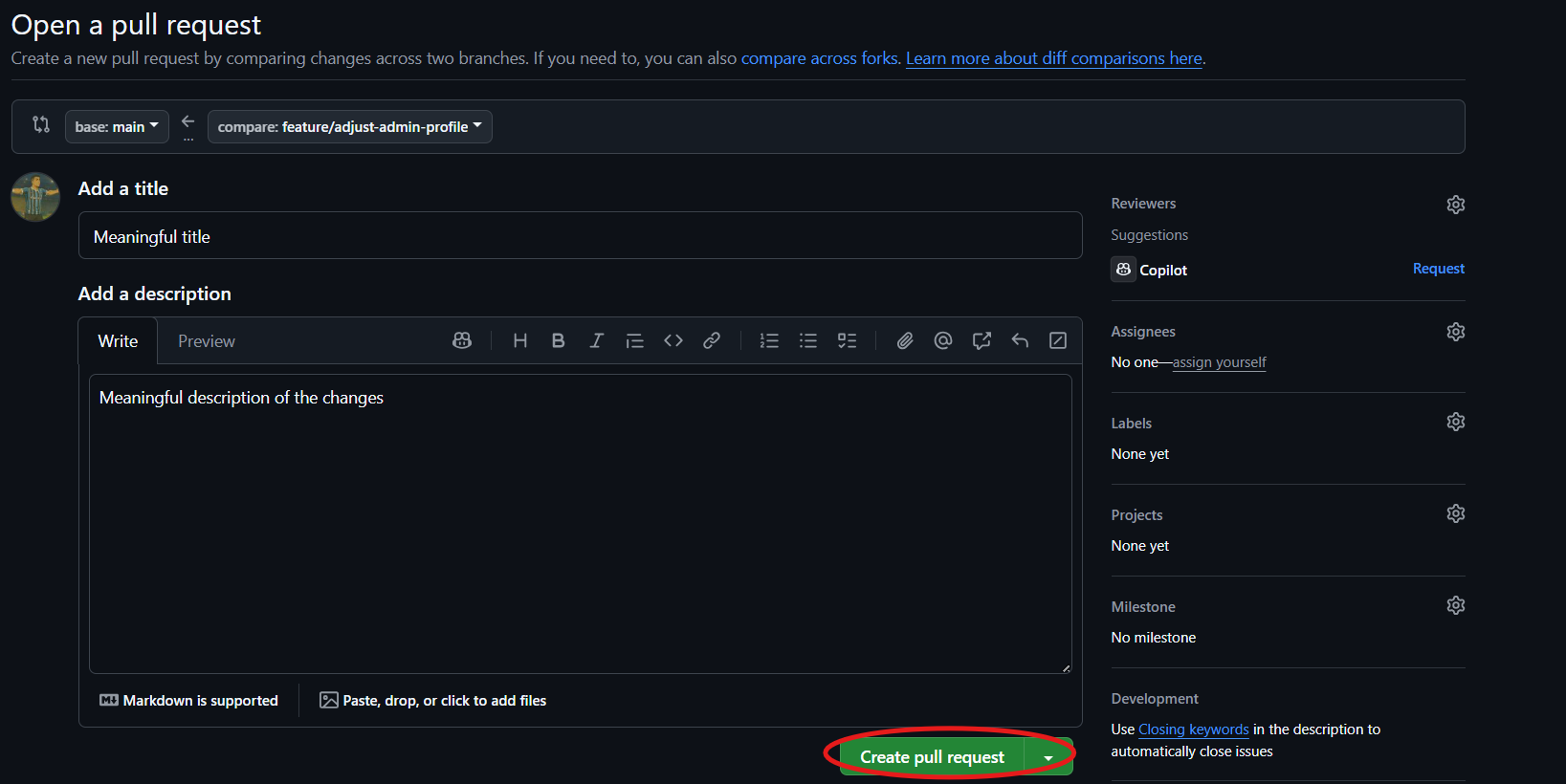
Add a meaningful title and description. If you use a ticketing system like Jira, put the ticket number in the title. Click Create pull request.
After creation
- The validation jobs start automatically and post their results as comments on the Pull Request. See Check the Pull Request results.
- To add more updates to an open Pull Request, do not create a new one: commit again and run Save / Publish again, as described in Publish your User Story. Every new commit pushed to your branch runs the validation jobs again.
- When the jobs are green, your release manager reviews and merges the Pull Request. Depending on the organization of the project, you may be responsible for getting the jobs green yourself before asking for the review.