Microsoft Teams
Microsoft Teams Integration
You can receive notifications on Microsoft Teams channels when sfdx-hardis events happen:
- Deployment from a major branch to a major Salesforce org (e.g. integration git branch to Integration org)
- Salesforce Org Monitoring
- Latest updates
- Failing Apex tests
- Monitoring checks notifications
Configure Microsoft Teams Workflow
Create Teams Workflow
Create a Teams Workflow using the following steps:
- Navigate to your Teams channel
- Click on the "..." menu and select "Workflows"
- Search for "Post to a channel when a webhook request is received"
- Configure the workflow:
- Select the team and channel where notifications should appear
- Copy the webhook URL provided
Configure sfdx-hardis for Teams
- Create a secret value named MS_TEAMS_WEBHOOK_URL with the webhook URL in your git provider configuration
- You can also create branch-scoped webhooks by defining the matching variables
- Example: Variable MS_TEAMS_WEBHOOK_URL_INTEGRATION for the integration branch
- You can also define an additional webhook to receive only warning, error and critical notifications
- Example: Variable MS_TEAMS_WEBHOOK_URL_ERRORS_WARNINGS
- Make sure all those variables are visible to your CI/CD pipelines
That's all, you're all set.
Per notification type severity threshold
Microsoft Teams belongs to the messaging channel (shared with Slack). You can raise the minimum severity required to post a notification on this channel per notification type, directly in .sfdx-hardis.yml:
monitoringCommands:
  - key: AUDIT_TRAIL
    notifications:
      messaging: warning   # Teams/Slack only on warning, error, critical
  - key: METADATA_STATUS
    notifications:
      messaging: off       # mute Teams/Slack for this type
See Monitoring configuration for the full per-channel routing model.
Alternative: Email Notifications
If you prefer email-based notifications, you can also use Email Notifications with the Teams channel email address as NOTIF_EMAIL_ADDRESS.
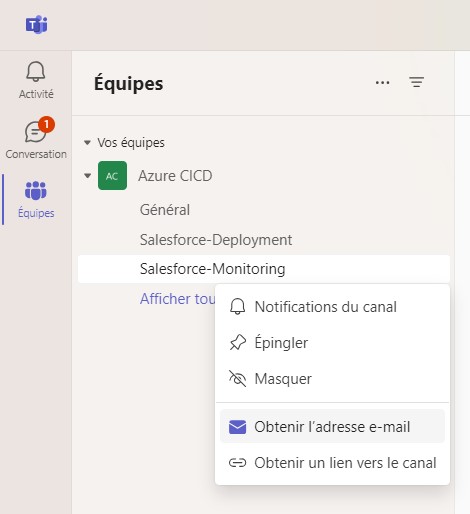
To get the email address of a Teams channel, open the channel contextual menu, then click "Get channel E-mail Address":
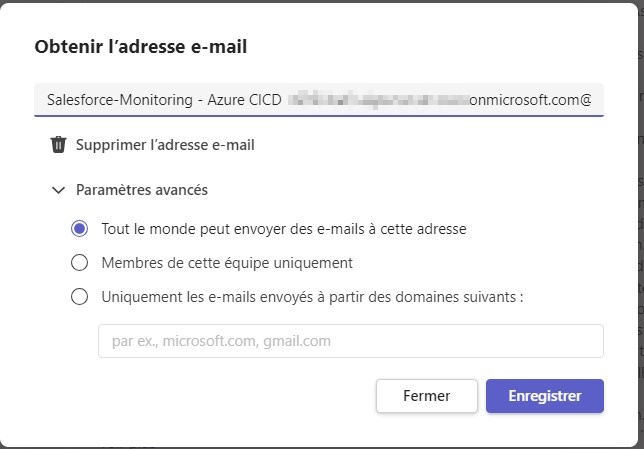
Then make sure that anyone can send emails to the channel by selecting the first option: