Creating sfdx-hardis Plugins
sfdx-hardis exposes a Plugin API that allows community developers to build their own Salesforce CLI plugins that seamlessly integrate with the sfdx-hardis VS Code extension.
Your plugin commands will automatically communicate with the VS Code extension using the same WebSocket connection initialized by the main sfdx-hardis CLI — no additional setup required.
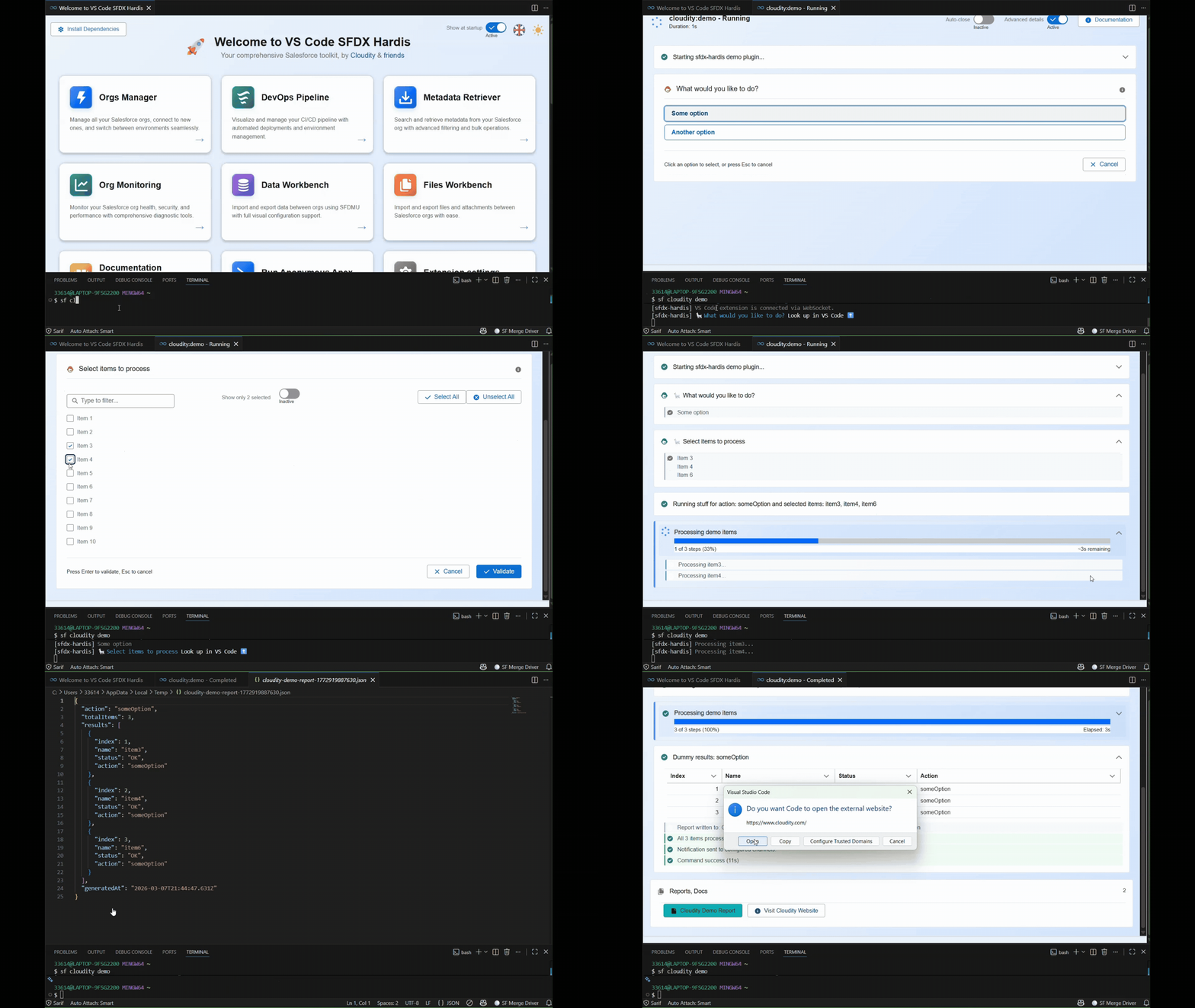
See demo repository: https://github.com/hardisgroupcom/sf-plugin-hardis-demo
How it works
When sfdx-hardis runs inside VS Code (via the extension), it initializes a WebSocket connection during its init hook. This connection lives in the Node.js process globals, so any plugin loaded into the same CLI process can reuse it.
The WebSocket connection is automatically activated for your plugin commands if your plugin lists sfdx-hardis in its dependencies or peerDependencies in package.json. The sfdx-hardis init hook detects this at runtime by inspecting the loaded plugins — no extra configuration needed.
Your plugin simply imports the exposed utilities from sfdx-hardis and calls them. The WebSocket routing happens automatically:
uxLogsends log messages to both the terminal and the VS Code extension UIuxLogTableformats and sends tabular data to both the terminal and the VS Code extension UIpromptsdisplays interactive prompts in VS Code (or falls back to terminal prompts)WebSocketClientprovides direct access to send messages, progress updates, and more
graph LR
    A[Your Plugin Command] -->|imports| B[sfdx-hardis Plugin API]
    B -->|uses shared| C[WebSocket Connection]
    C -->|communicates with| D[VS Code Extension]
    E[sfdx-hardis CLI] -->|initializes| C
WebSocket activation rules
The sfdx-hardis init hook decides whether to start the WebSocket connection based on these rules (checked in order):
- Command prefix
hardis: Always activated for native sfdx-hardis commands. SFDX_HARDIS_PLUGIN_PREFIXESenv var: If set, the WebSocket activates for commands whose ID starts with any of the comma-separated prefixes (e.g.,SFDX_HARDIS_PLUGIN_PREFIXES=myplugin,otherplugin).- Automatic dependency detection: If the command belongs to a plugin whose
package.jsonlistssfdx-hardisindependenciesorpeerDependencies, the WebSocket activates automatically.
Getting started
1. Create your Salesforce CLI plugin project
Use the sf dev generate plugin command to scaffold a new Salesforce CLI plugin:
sf dev generate plugin my-sfdx-hardis-plugin
cd my-sfdx-hardis-plugin
2. Add sfdx-hardis as a dependency
yarn add sfdx-hardis
Or with npm:
npm install sfdx-hardis
3. Import and use the Plugin API
In your command files, import the utilities you need:
import {
  uxLog,
  prompts,
  WebSocketClient,
  NotifProvider,
} from "sfdx-hardis/plugin-api";
// Types are also available
import type {
  LogType,
  PromptsQuestion,
  NotifMessage,
} from "sfdx-hardis/plugin-api";
You can also import from the main package entry point:
import { uxLog, prompts, WebSocketClient } from "sfdx-hardis";
4. Install both plugins
Users of your plugin need to install both sfdx-hardis and your plugin:
sf plugins install sfdx-hardis
sf plugins install my-sfdx-hardis-plugin
API Reference
uxLog(logType, commandThis, message, sensitive?)
Sends a log message to the terminal and to the VS Code extension (when connected).
Parameters:
| Parameter | Type | Description |
|---|---|---|
logType |
LogType |
One of: 'log', 'action', 'warning', 'error', 'success', 'table', 'other' |
commandThis |
any |
The current command instance (this in a command's run() method) |
message |
string |
The message to display (supports chalk formatting) |
sensitive |
boolean |
Optional. If true, the message is obfuscated in log files |
Example:
import { uxLog } from "sfdx-hardis/plugin-api";
import c from "chalk";

// In your command's run() method:
uxLog("action", this, c.cyan("Processing metadata..."));
uxLog("success", this, c.green("Deployment completed successfully!"));
uxLog("warning", this, c.yellow("Some items were skipped."));
uxLog("error", this, c.red("Failed to connect to org."));
uxLogTable(commandThis, tableData, columnsOrder?)
Renders a user-facing table in the terminal and in the VS Code extension.
Parameters:
| Parameter | Type | Description |
|---|---|---|
commandThis |
any |
The current command instance (this in a command's run() method) |
tableData |
any[] |
Array of row objects to render |
columnsOrder |
string[] |
Optional. Column keys to keep and the order to display them |
Behavior:
- If
columnsOrderis omitted, headers come fromObject.keys(tableData[0]). - Boolean values are rendered as emoji (
✅/⬜) in the terminal table. - When the VS Code UI is active, the table payload is capped to 20 rows and a truncation row is appended.
Example:
import { uxLogTable } from "sfdx-hardis/plugin-api";

// In your command's run() method:
uxLogTable(
  this,
  [
    { name: "My Flow", type: "Flow", status: "Active" },
    { name: "My Object", type: "Custom Object", status: "Inactive" },
  ],
  ["name", "type", "status"]
);
prompts(options)
Displays interactive prompts. When the VS Code extension is connected, prompts are shown in the VS Code UI. Otherwise, they fall back to terminal-based prompts (using inquirer).
Parameters:
| Parameter | Type | Description |
|---|---|---|
options |
PromptsQuestion \| PromptsQuestion[] |
A single question or array of questions |
PromptsQuestion interface:
| Property | Type | Description |
|---|---|---|
message |
string |
The question text |
description |
string |
Additional description |
placeholder |
string |
Optional placeholder text |
type |
'select' \| 'multiselect' \| 'confirm' \| 'text' \| 'number' |
Input type |
name |
string |
Optional. Property name for the answer (defaults to 'value') |
choices |
Array<{title: string, value: any}> |
Options for select/multiselect |
default |
any |
Optional default value |
initial |
any |
Optional initial value |
Example:
import { uxLog, prompts } from "sfdx-hardis/plugin-api";
import c from "chalk";

// Single select prompt
const envResponse = await prompts({
  type: "select",
  name: "environment",
  message: "Select target environment",
  description: "Choose where to deploy",
  choices: [
    { title: "Sandbox", value: "sandbox" },
    { title: "Production", value: "production" },
  ],
});
uxLog("action", this, c.cyan(`Selected: ${envResponse.environment}`));

// Text input
const nameResponse = await prompts({
  type: "text",
  name: "projectName",
  message: "Enter project name",
  description: "The name for your new project",
});

// Confirm prompt (automatically converted to select Yes/No)
const confirmResponse = await prompts({
  type: "confirm",
  name: "proceed",
  message: "Do you want to continue?",
  description: "This will start the deployment",
});
WebSocketClient
Static class providing direct control over the VS Code extension communication.
WebSocketClient.isAlive(): boolean
Returns true if the WebSocket connection to the VS Code extension is active.
if (WebSocketClient.isAlive()) {
  // We're running inside VS Code with the extension
}
WebSocketClient.sendProgressStartMessage(title, totalSteps?)
Starts a progress indicator in VS Code.
WebSocketClient.sendProgressStartMessage("Processing files", files.length);
WebSocketClient.sendProgressStepMessage(step, totalSteps?)
Updates the progress indicator.
for (let i = 0; i < files.length; i++) {
  // ... process file ...
  WebSocketClient.sendProgressStepMessage(i + 1, files.length);
}
WebSocketClient.sendProgressEndMessage(totalSteps?)
Ends the progress indicator.
WebSocketClient.sendProgressEndMessage(files.length);
WebSocketClient.requestOpenFile(file)
Requests VS Code to open a specific file.
WebSocketClient.requestOpenFile("/path/to/file.cls");
WebSocketClient.sendReportFileMessage(file, title, type)
Sends a downloadable report file or url notification to VS Code.
This will make appear clickable buttons at the bottom of command execution ui.
WebSocketClient.sendReportFileMessage(
  reportFilePath,
  "Deployment Report",
  "report"
);
type value |
Description |
|---|---|
"report" |
A report file to download |
"docUrl" |
A documentation URL |
"actionUrl" |
An action URL |
"actionCommand" |
A command to run |
Other available methods
| Method | Description |
|---|---|
sendRefreshStatusMessage() |
Triggers a status refresh in VS Code |
sendRefreshCommandsMessage() |
Triggers a commands list refresh |
sendCommandLogLineMessage(message, logType?, isQuestion?) |
Sends a log line to the command output panel |
NotifProvider
Static class for posting notifications to all configured channels (Slack, MS Teams, Email, custom API). The channels are configured by the end user via environment variables or .sfdx-hardis.yml.
NotifProvider.postNotifications(notifMessage)
Posts a notification to all configured channels.
Basic example — simple success notification:
import { NotifProvider } from "sfdx-hardis/plugin-api";

await NotifProvider.postNotifications({
  text: "My plugin completed successfully",
  type: "MY_PLUGIN_TYPE", // use a unique ALL_CAPS identifier for your plugin
  severity: "success",
  logElements: [],
  data: {},
  metrics: {},
});
Example with action buttons and attachment text:
import { NotifProvider } from "sfdx-hardis/plugin-api";
import type { NotifMessage } from "sfdx-hardis/plugin-api";

const notif: NotifMessage = {
  text: `Deployment completed to *Production*\n- Components deployed: 42\n- Tests passed: 156`,
  type: "MY_DEPLOYMENT",
  severity: "success",
  attachments: [{ text: "• MyClass: OK\n• MyFlow: OK\n• MyPermissionSet: OK" }],
  buttons: [
    {
      text: "View Job",
      url: "https://ci.example.com/job/123",
      style: "primary",
    },
    { text: "View Org", url: "https://myorg.my.salesforce.com" },
  ],
  logElements: [],
  data: {},
  metrics: {},
};
await NotifProvider.postNotifications(notif);
Advanced example — sending numeric metrics to Grafana/InfluxDB/Prometheus:
The metrics property is used to send time-series data to a metrics API (InfluxDB line protocol or Prometheus format), configured by the end user via NOTIF_API_METRICS_URL.
Each key in metrics becomes a separate metric series. Values can be:
- A plain number (simple gauge:
metric=<value>) - An object with
value(required), and optionallymin,max,percent
import { NotifProvider } from "sfdx-hardis/plugin-api";

const failingItems = [
  { name: "MyClass", error: "Assertion failed" },
  { name: "OtherClass", error: "DML exception" },
];

await NotifProvider.postNotifications({
  text: `Metadata analysis complete\n- Issues found: ${failingItems.length}\n- Coverage: 82%`,
  type: "MY_PLUGIN_ANALYSIS",
  severity: failingItems.length > 0 ? "warning" : "success",
  attachments: [
    {
      text: failingItems
        .map((item) => `• *${item.name}*: ${item.error}`)
        .join("\n"),
    },
  ],
  buttons: [
    {
      text: "View Report",
      url: "https://example.com/report",
      style: "primary",
    },
  ],
  // logElements: structured list sent as _logElements in the API payload
  // Useful for dashboards that render tabular data
  logElements: failingItems,
  // data: arbitrary key-value pairs merged into the API payload
  // Available as top-level fields in Grafana/Loki queries
  data: {
    orgUrl: "https://myorg.my.salesforce.com",
    branchName: "main",
    totalComponents: 120,
  },
  // metrics: numeric values pushed to NOTIF_API_METRICS_URL (InfluxDB / Prometheus)
  // Simple number → MetricName,... metric=<value>
  // Object with value/min/max/percent → multiple fields per series
  metrics: {
    // Simple gauge: one data point named "MyPluginIssues"
    MyPluginIssues: failingItems.length,
    // Simple gauge: code coverage percentage
    MyPluginCoverage: 82.0,
    // Complex gauge: sends metric=, min=, max=, percent= fields
    MyPluginLimitUsage: {
      value: 4200,
      min: 0,
      max: 5000,
      percent: 84.0,
    },
  },
});
The resulting InfluxDB line protocol for the metrics above would be:
MyPluginIssues,source=sfdx-hardis,type=MY_PLUGIN_ANALYSIS,orgIdentifier=myorg,gitIdentifier=repo/main metric=2.00
MyPluginCoverage,source=sfdx-hardis,type=MY_PLUGIN_ANALYSIS,orgIdentifier=myorg,gitIdentifier=repo/main metric=82.00
MyPluginLimitUsage,source=sfdx-hardis,type=MY_PLUGIN_ANALYSIS,orgIdentifier=myorg,gitIdentifier=repo/main min=0.00,max=5000.00,percent=84.00,metric=4200.00
See NotifMessage for all available fields.
NotifMessage
Interface describing a notification to send.
| Property | Type | Required | Description |
|---|---|---|---|
text |
string |
✓ | Main notification text (supports Slack markdown: *bold*, _italic_) |
type |
string |
✓ | Notification type identifier — use a unique ALL_CAPS string for your plugin (e.g. "MY_PLUGIN_RESULT") |
severity |
NotifSeverity |
✓ | One of: "critical", "error", "warning", "info", "success", "log" |
logElements |
any[] |
✓ | Array of structured items (e.g. failing tests, issues). Sent as _logElements in the API payload. |
data |
any |
✓ | Arbitrary key-value pairs merged into the API payload (available in Grafana/Loki queries) |
metrics |
any |
✓ | Numeric metrics pushed to NOTIF_API_METRICS_URL. Keys become metric names. Values are a number or { value, min?, max?, percent? } |
attachments |
{ text: string }[] |
Extra detail blocks appended to the notification body | |
buttons |
NotifButton[] |
Action buttons shown in Slack/Teams (requires text + optional url and style) |
|
attachedFiles |
string[] |
Absolute paths to files uploaded as attachments (e.g. CSV reports) | |
alwaysSend |
boolean |
If true, send even when the severity would normally be filtered out |
|
sideImage |
string |
URL of a side image shown in some providers |
Complete plugin example
Here is a complete example of an sfdx-hardis plugin command:
import { SfCommand } from "@salesforce/sf-plugins-core";
import { type AnyJson } from "@salesforce/ts-types";
import { uxLog, prompts, WebSocketClient } from "sfdx-hardis/plugin-api";
import type { PromptsQuestion } from "sfdx-hardis/plugin-api";
import c from "chalk";

export default class MyCustomCommand extends SfCommand<AnyJson> {
  public static readonly summary = "My custom sfdx-hardis plugin command";
  public static readonly description =
    "Does something awesome with VS Code integration";

  public async run(): Promise<AnyJson> {
    // Log messages appear in both terminal and VS Code
    uxLog("action", this, c.cyan("Starting custom processing..."));

    // Prompt user (VS Code UI or terminal fallback)
    const response = await prompts({
      type: "select",
      name: "action",
      message: "What would you like to do?",
      description: "Select an action",
      choices: [
        { title: "Analyze metadata", value: "analyze" },
        { title: "Generate report", value: "report" },
      ],
    });

    // Show progress in VS Code
    const items = ["Item1", "Item2", "Item3"];
    WebSocketClient.sendProgressStartMessage("Processing items", items.length);

    for (let i = 0; i < items.length; i++) {
      uxLog("log", this, c.grey(`Processing ${items[i]}...`));
      // ... do work ...
      WebSocketClient.sendProgressStepMessage(i + 1, items.length);
    }

    WebSocketClient.sendProgressEndMessage(items.length);
    uxLog("success", this, c.green("Processing complete!"));

    return { success: true, action: response.action } as AnyJson;
  }
}
Important notes
- The WebSocket connection is managed by sfdx-hardis. Your plugin should never create its own
WebSocketClientinstance. Just call the static methods. - Automatic WebSocket activation. As long as your plugin lists
sfdx-hardisindependenciesorpeerDependencies, the WebSocket connection is automatically initialized for your commands — no extra configuration required. - Manual prefix override. If automatic detection does not work for your setup, set the
SFDX_HARDIS_PLUGIN_PREFIXESenvironment variable to a comma-separated list of command prefixes (e.g.,SFDX_HARDIS_PLUGIN_PREFIXES=myplugin,otherplugin). - Prompts throw in CI mode. When
process.env.CIis set, callingprompts()throws an error. Design your commands to accept flags for CI usage. - Graceful fallback. When the VS Code extension is not connected,
uxLogstill outputs to the terminal, andpromptsfalls back to terminal-based inquirer prompts. Your plugin works everywhere. - sfdx-hardis must be installed. Users need both sfdx-hardis and your plugin installed for the integration to work.