Command execution panel
Every sfdx-hardis command started from the extension runs in its own tab. The panel shows the steps as a timeline, asks the command's questions as forms, draws progress bars and tables, and gathers the report files at the bottom. You never have to read raw terminal output.
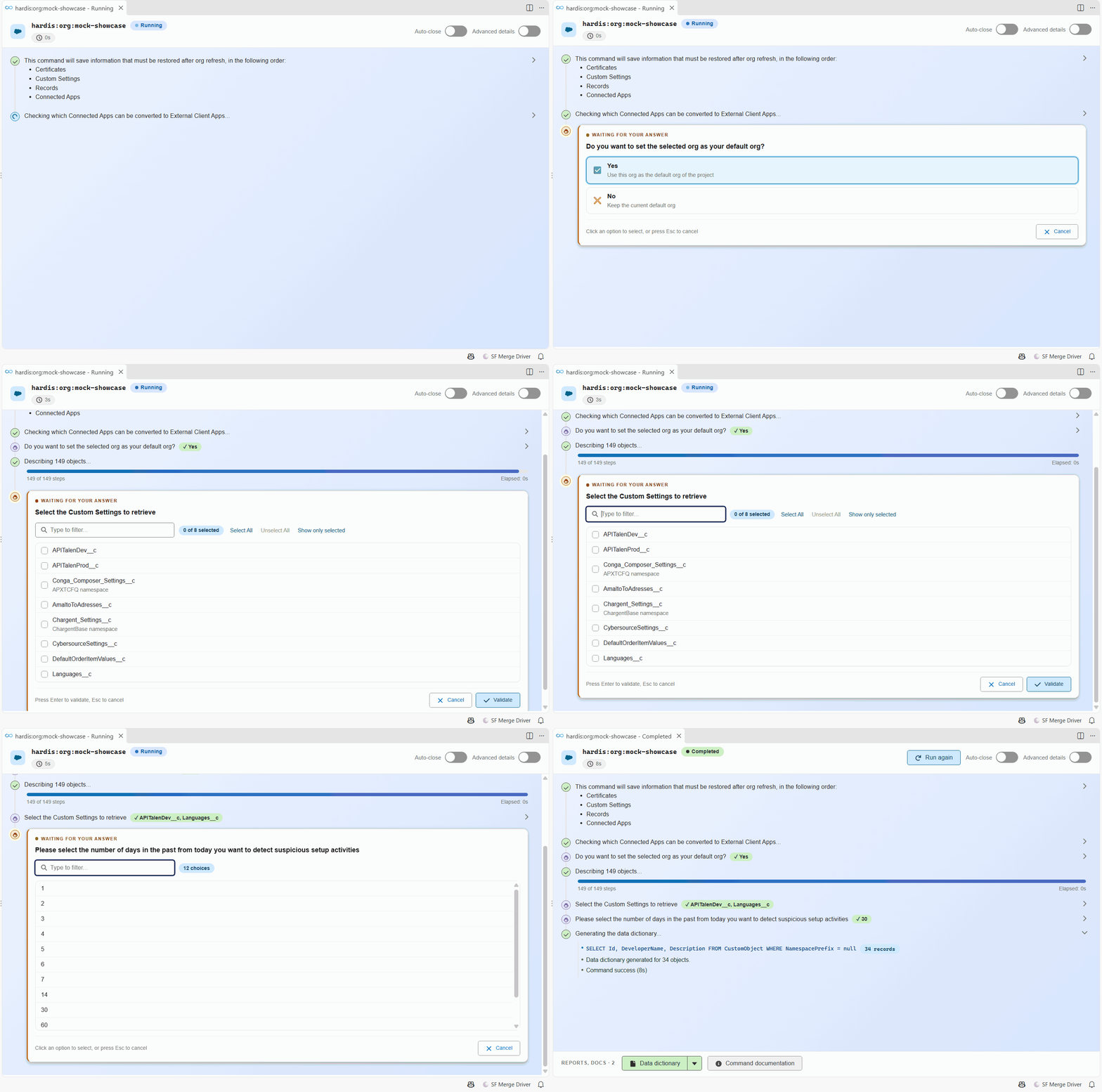
Open it
You do not open it yourself: it opens as soon as you start a command, from a menu of the side bar, a card of a workbench or a custom command of your team. Several commands can run side by side, each in its own tab.
Answer a question
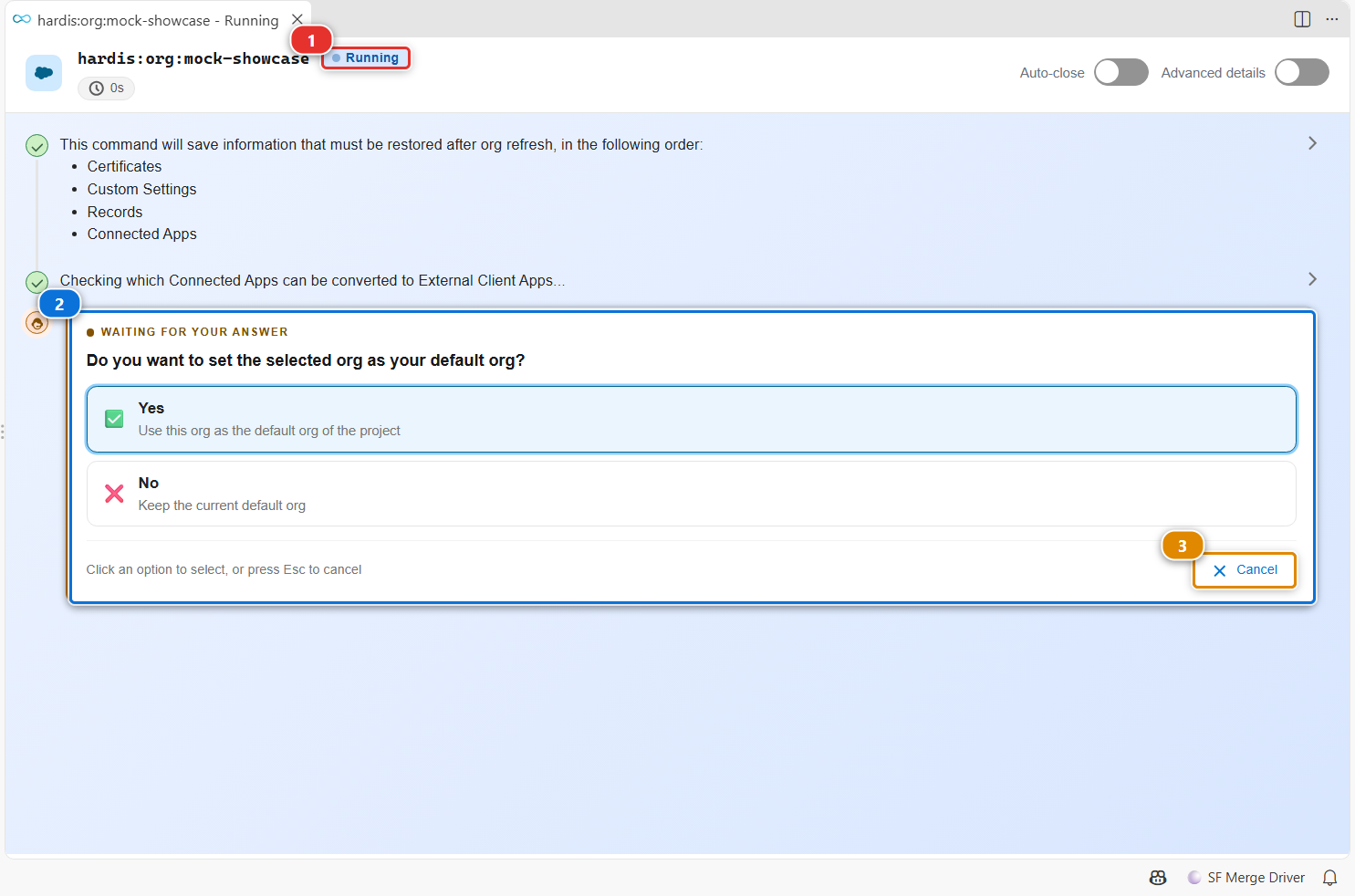
When the command needs an answer, the badge (1) says Running and the question shows in the timeline (2), highlighted as Waiting for your answer. Click an option to answer. (3) cancels the question, which stops the command.
Pick several values
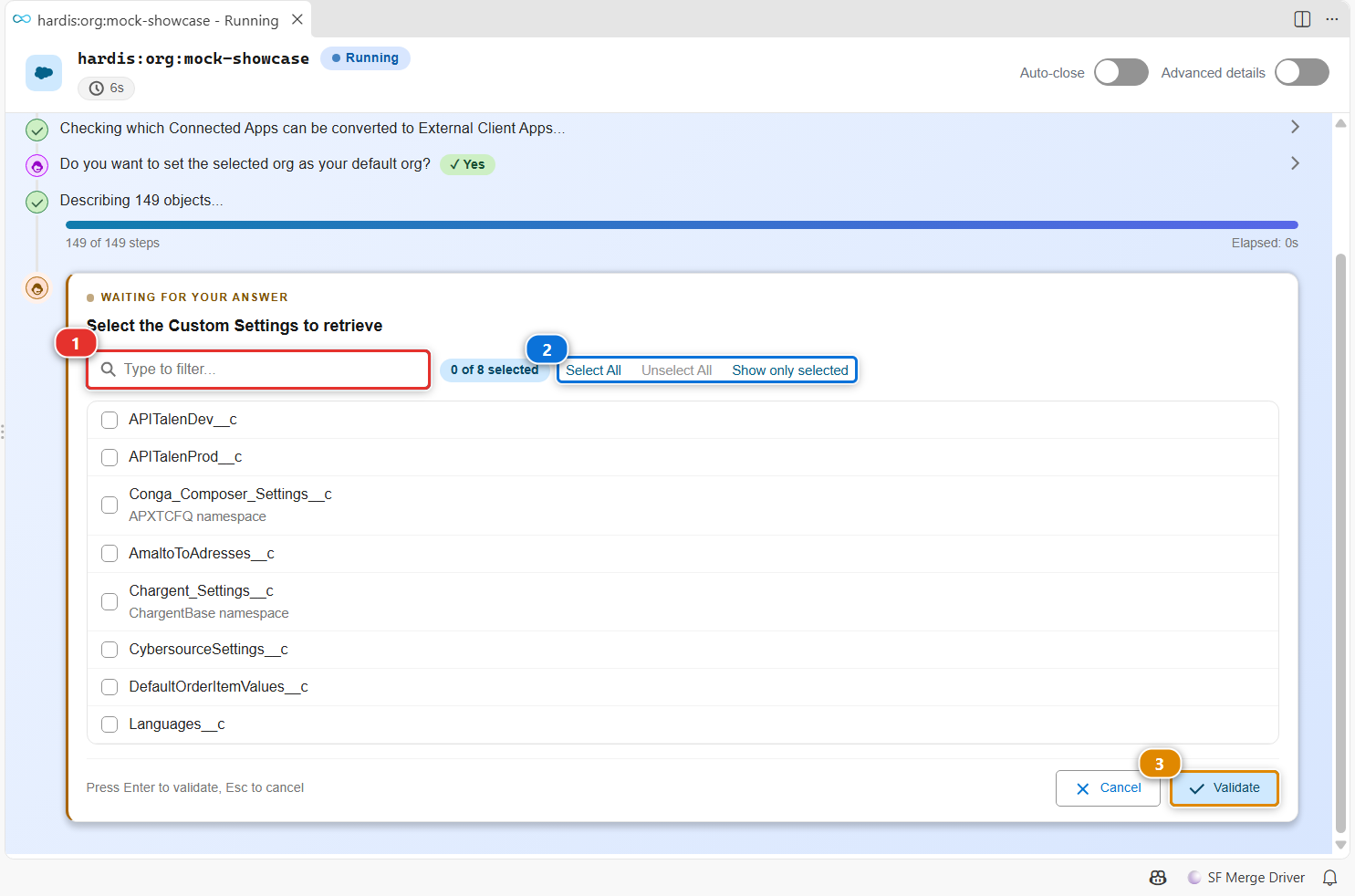
Some questions accept several values:
- Type in (1) to filter a long list.
- (2) counts the selected values and selects or unselects them all at once. Show only selected hides the rest.
- Check the values you want, then click (3) or press Enter.
Read the result
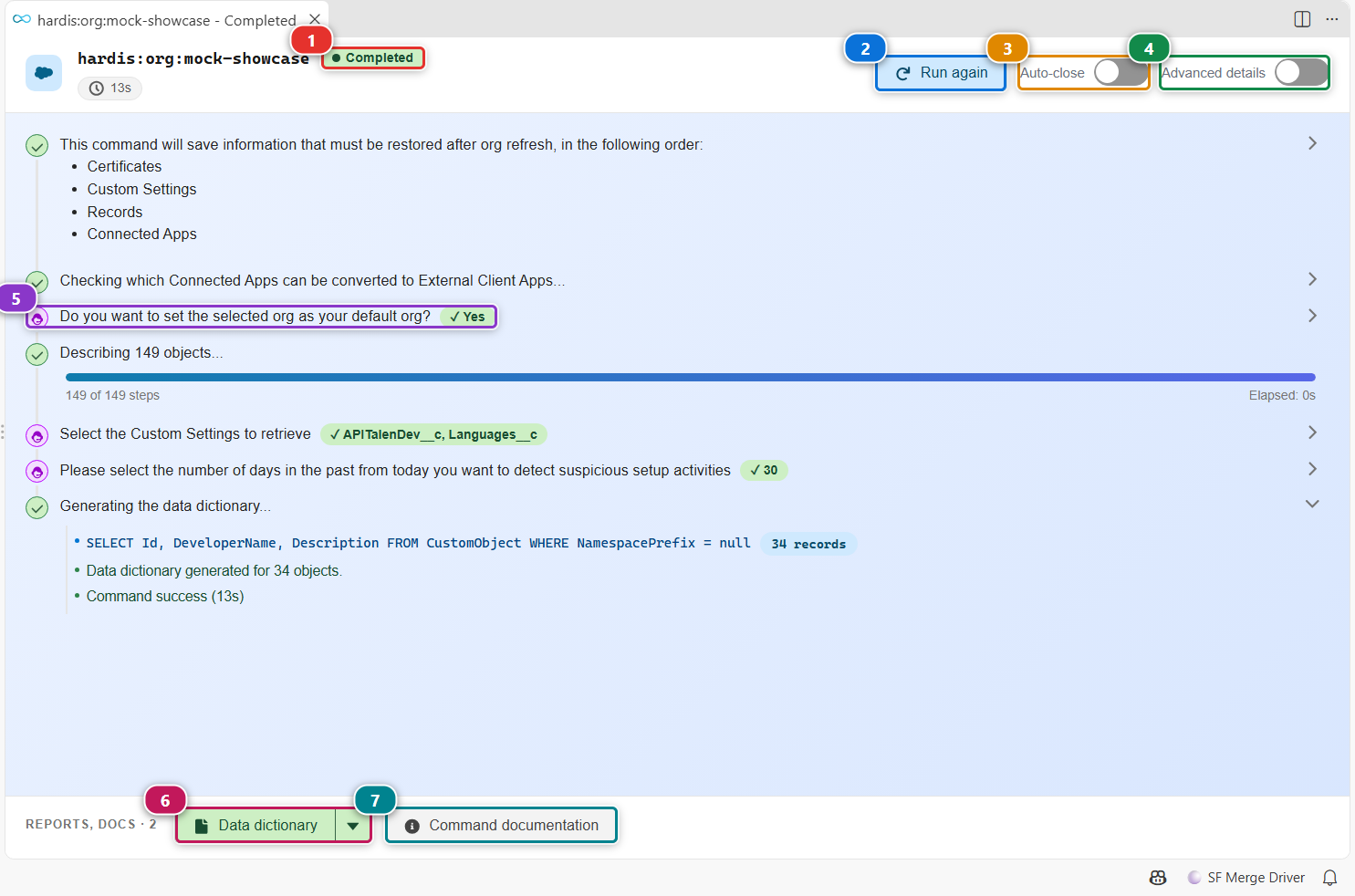
- (1) gives the final status: Completed, or Failed with the error in the timeline.
- (2) runs the same command again, with the same arguments.
- (3) closes the tab by itself the next time this command succeeds.
- (4) shows the advanced details: the sub-commands and the full logs of each step.
- (5) each answer you gave stays in the timeline. Click a line to expand what it did.
- (6) opens a report file produced by the command. Its arrow offers the other ways to open it, for example in VS Code instead of the default application.
- (7) opens the documentation of the command on this site.
Customize
| What | Setting |
|---|---|
| Always show the advanced details | vsCodeSfdxHardis.showCommandsDetails |
| Close the tab automatically when these commands succeed | vsCodeSfdxHardis.autocloseCommands (list of commands, filled by toggle Auto-close) |
| Run these commands in a terminal without asking, when they cannot run in the background | vsCodeSfdxHardis.autorunCommands |
| Run commands in the background or in a terminal | vsCodeSfdxHardis.userInputCommandLineIfLWC (background or terminal) |
| Skip the confirmation questions you always answer the same way | vsCodeSfdxHardis.userModeExpert |
These settings are also in the User Input tab of the extension settings, see Customize the extension.