Metadata Retriever
The Metadata Retriever replaces the standard Org Browser. It answers "what did I change in my org?" in one click, filters by type, name, author, date and package, shows which components already exist in your project, and retrieves the ones you pick.
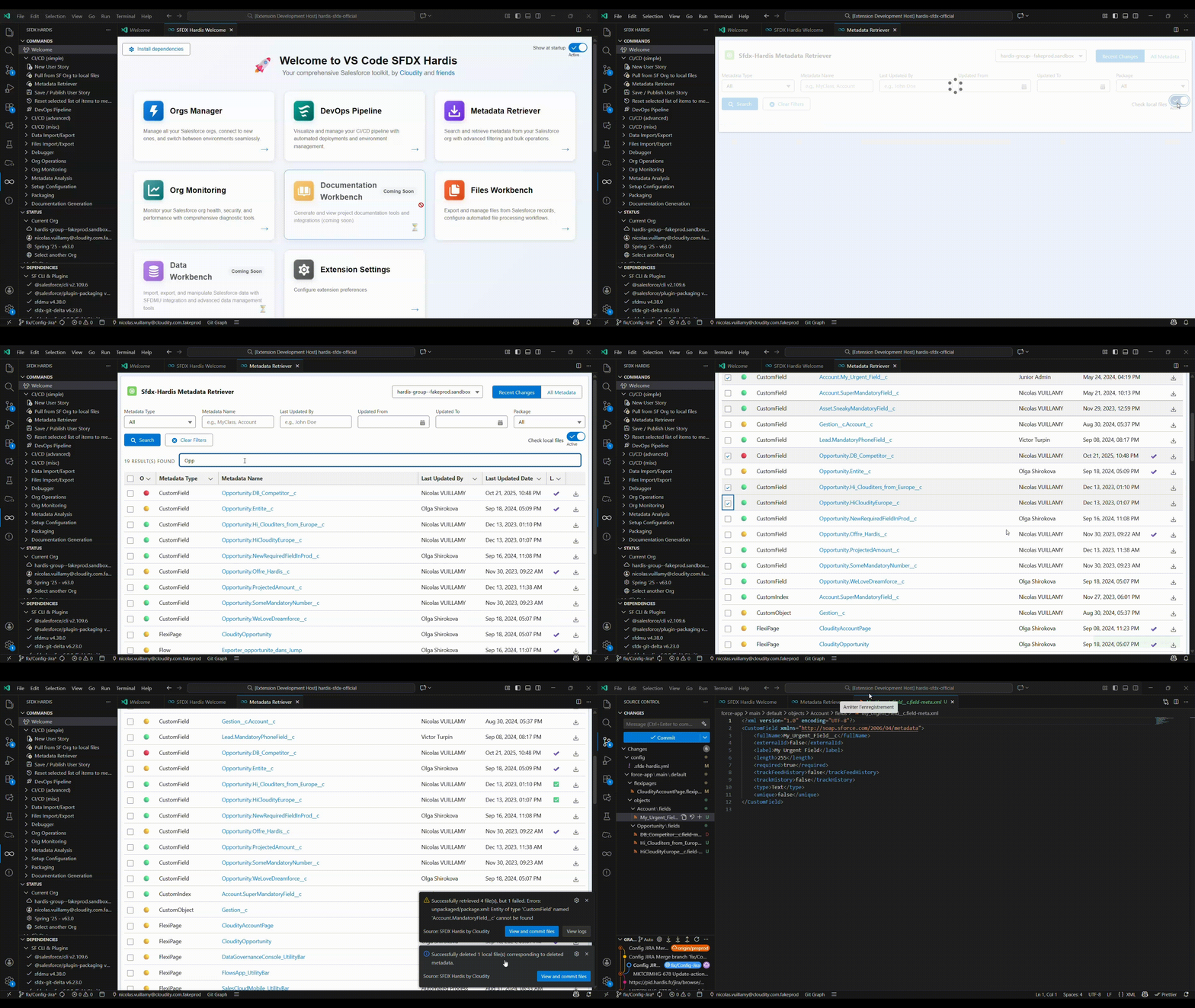
Open it
- Click Metadata Retriever in the CI/CD (simple) menu of the side bar.
- Click the Commit changes card of the DevOps Pipeline, or the Metadata Retriever card of the Welcome panel.
Find and retrieve what you changed
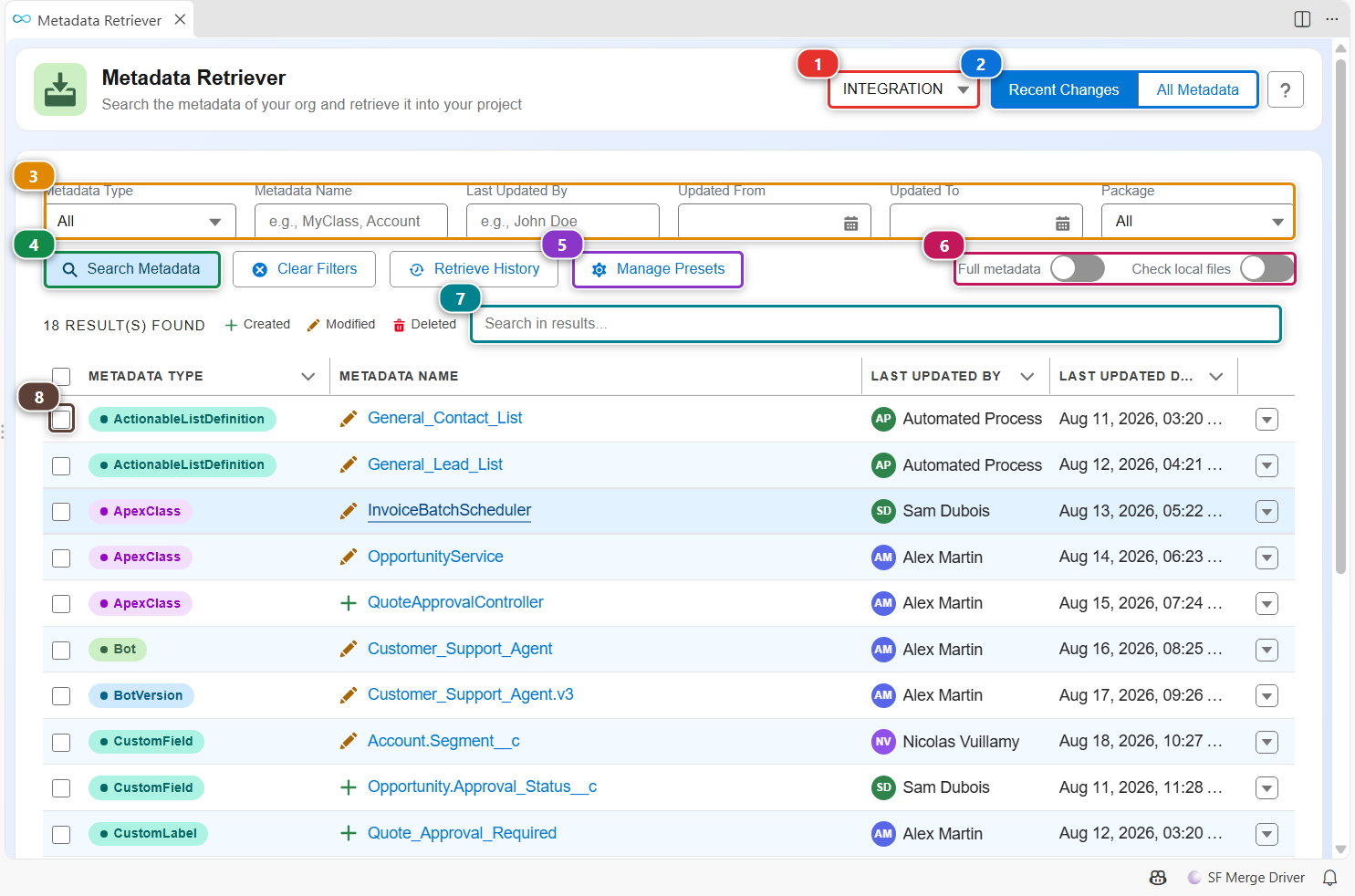
- Check the org in (1). It is your default org when the panel opens.
- Pick a mode in (2):
- Recent Changes lists what was created, modified or deleted recently, with who did it. Use it before you commit a User Story.
- All Metadata lists every component of the org, including the ones nobody touched.
- Narrow the list with (3): metadata type (or a preset of several types), name, last updated by, date range, installed package.
- Click (4). The results show below, with an icon telling whether each component was created, modified or deleted.
- (7) filters the results without querying the org again.
- Check the rows you want (8), then click the floating Retrieve button that appears once something is selected. The files land in your project, ready to commit.
Two toggles change how it works (6):
- Full metadata retrieves complete components through the CRUD Metadata API, such as whole Profiles. It is slower, and nothing is truncated.
- Check local files adds a column that tells which components already exist in your project.
(5) manages presets, see below.
Act on one component
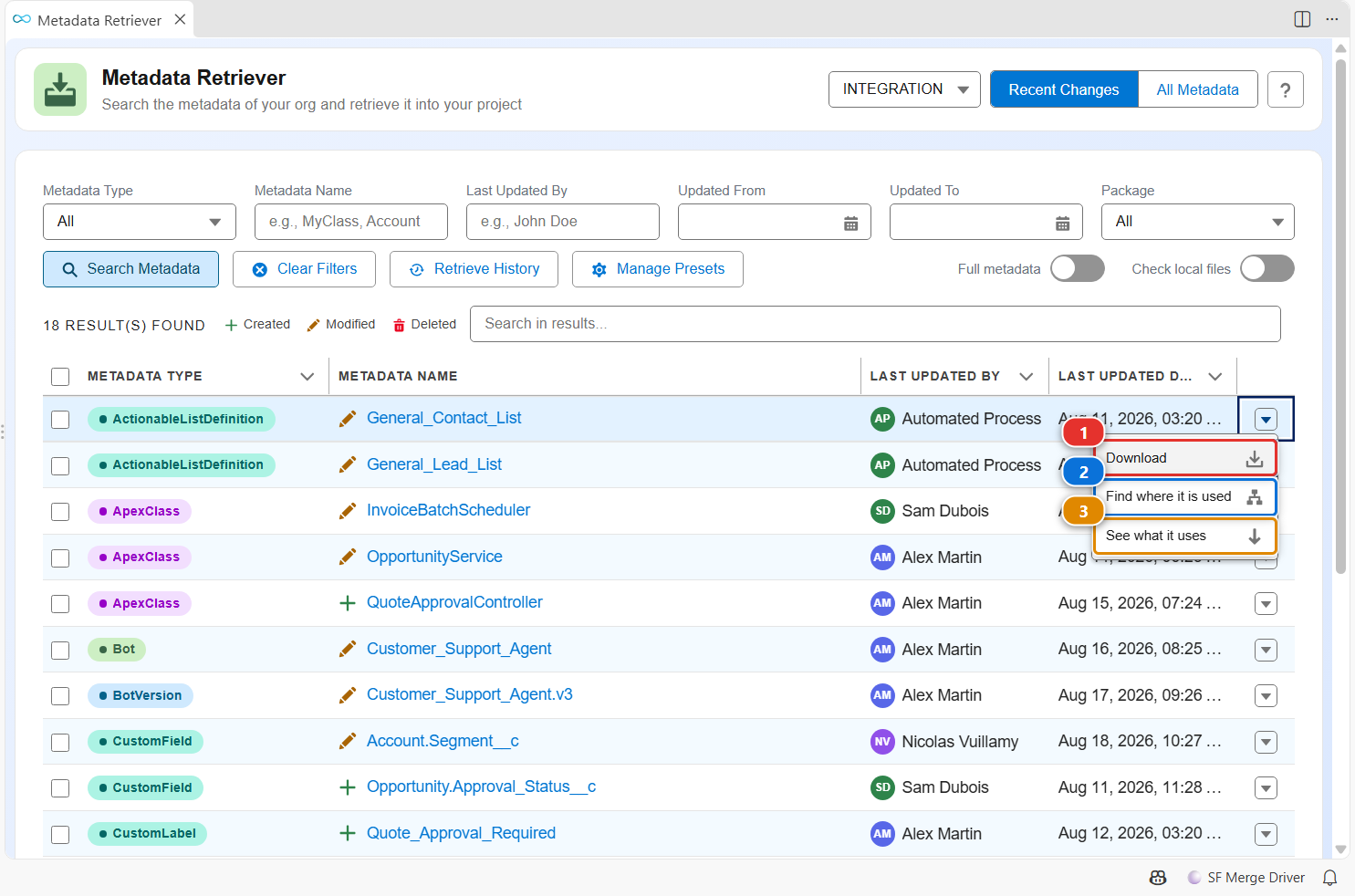
The arrow at the end of a row opens its menu:
- (1) retrieves this component only.
- (2) opens Metadata Dependencies on what uses it, before you change or delete it.
- (3) opens Metadata Dependencies on what it uses.
Save your own presets of metadata types
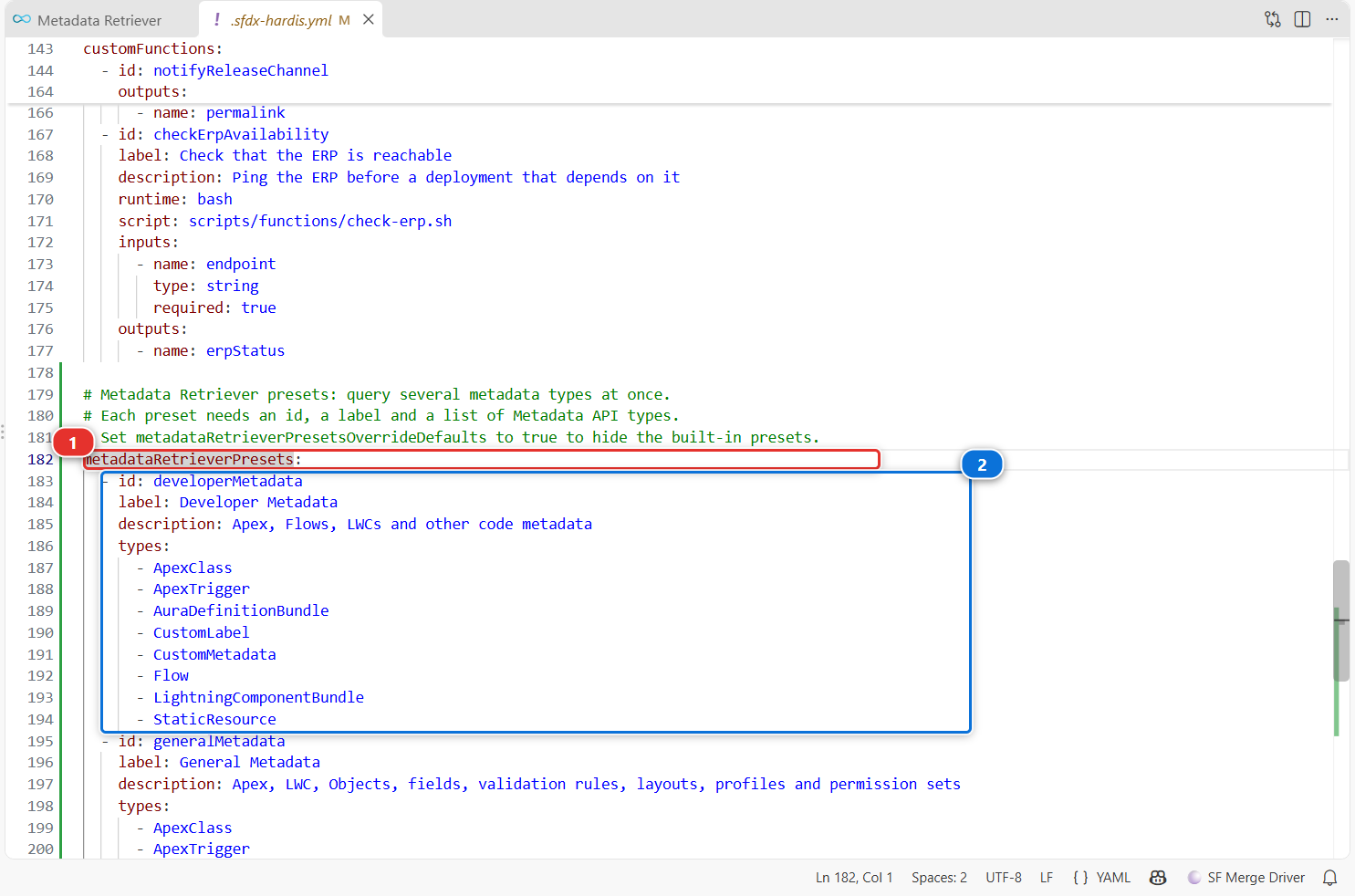
A preset is a named group of metadata types that the type filter selects in one click, for example "Developer Metadata" for Apex, Flows and LWC. Click Manage Presets: it opens .sfdx-hardis.yml at the metadataRetrieverPresets key (1), and writes the built-in presets there the first time, so you have an example to copy. Each preset (2) has an id, a label, an optional description and its types:
metadataRetrieverPresets:
  - id: securityMetadata
    label: Security
    description: Profiles, permission sets and their groups
    types:
      - Profile
      - PermissionSet
      - PermissionSetGroup
Save the file: the panel uses your presets at once. Commit it so the whole team gets them.
Customize
| What | Where |
|---|---|
| Your own presets | metadataRetrieverPresets in .sfdx-hardis.yml |
| Hide the built-in presets | metadataRetrieverPresetsOverrideDefaults: true in .sfdx-hardis.yml |
| Replace one built-in preset | Declare a preset with the same id |