Backpromote to your dev sandbox (Beta)
This feature is in Beta. Please report any issue or feedback on the sfdx-hardis GitHub repository.
While you work in your developer sandbox, your teammates merge their User Stories in the parent branch (integration, uat...). Your sandbox falls behind: fields, classes or flows they created are missing, and your next User Story may conflict with theirs.
A backpromote deploys into your sandbox what the team merged since your last backpromote: the metadata, the deletions, and the deployment actions of their Pull Requests.
When to backpromote
- Before starting a User Story, so that you work on the latest version of the parent branch. New User Story no longer updates the metadata of an existing sandbox: backpromote does.
- During a long User Story, when a teammate merged something you need.
- After a sandbox refresh, to bring the refreshed sandbox up to date with the parent branch.
- Whenever several people share the same sandbox: each backpromote is recorded on the Pull Requests, so the next person starts where the previous one ended, from any computer.
Before you start
- Authenticate your developer sandbox (or scratch org) in the Orgs Manager.
- Connect to your git provider (GitHub, GitLab, Azure DevOps or Bitbucket) from the DevOps Pipeline panel. A backpromote needs it to read and write its history on the Pull Requests. VS Code keeps the connection, and each time the Backpromote panel runs sfdx-hardis, it passes the token as environment variables of the command. The panel tells you when no connection is found.
Three ways to backpromote
| Way | What you do | What a coding agent does |
|---|---|---|
| By hand | Everything, in the Backpromote panel | Nothing |
| With a coding agent for merges and errors | The choices and the clicks, in the panel | Solves the merges, and fixes the deployment errors |
| Fully with a coding agent | Paste one prompt, answer its questions | The whole backpromote, with sf hardis:work:backpromote |
The coding agent can be Claude Code, Codex, GitHub Copilot, or any agent that can edit files and run commands in your repository.
By hand in the panel
Step 1: open the panel
Click the Backpromote card below the DevOps Pipeline diagram, or Backpromote to your dev sandbox (Beta) in the commands panel.
Step 2: choose where
Pick the target sandbox and the parent branch. Your default org is picked for you when it is a developer sandbox. The parent branch is picked for you when it is your current branch, or when only one is allowed. Production and the orgs of major branches are greyed: a backpromote never deploys there. The last entry of the sandbox list opens the Orgs Manager to connect another org.
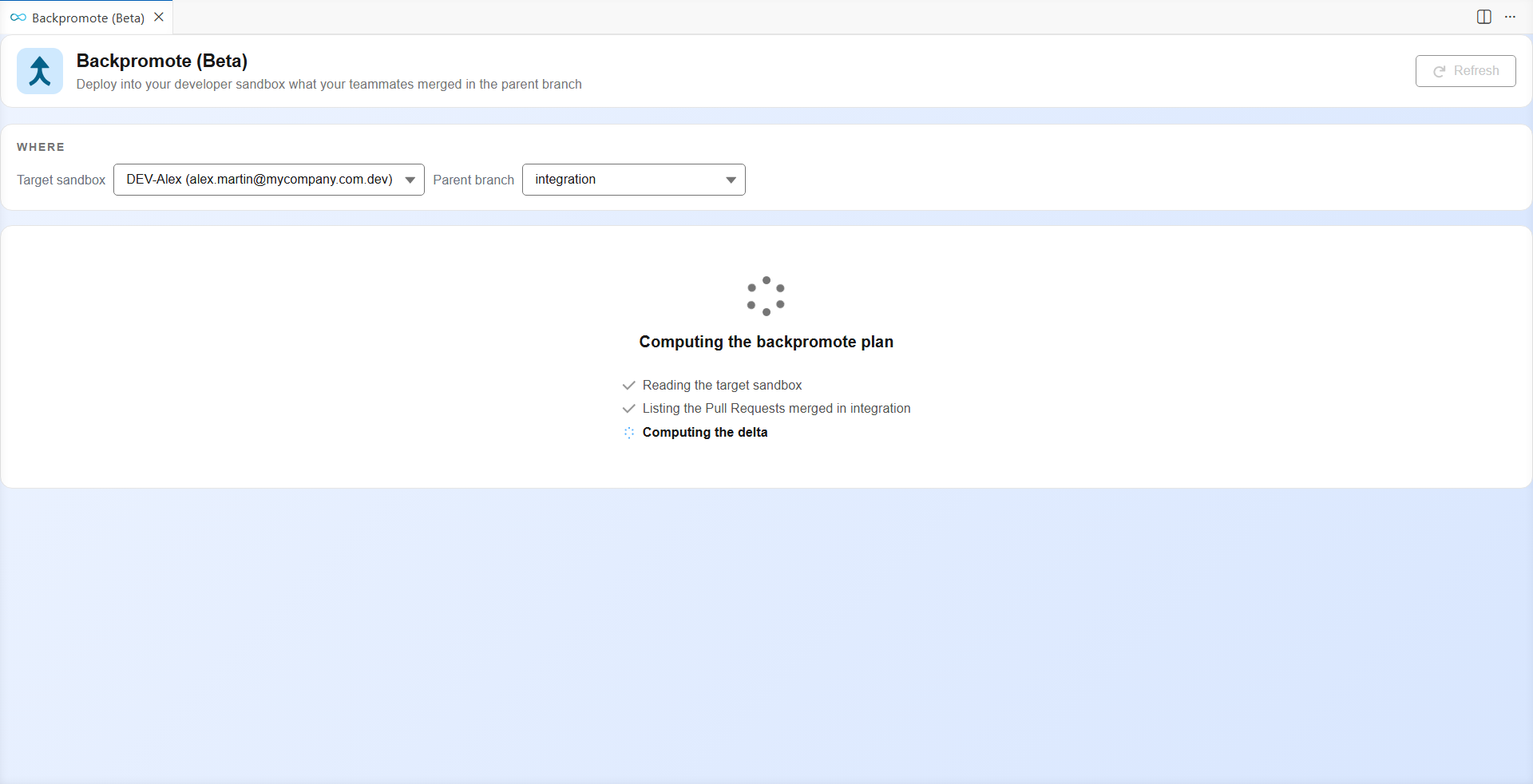
The plan is computed once both are chosen. The panel shows each step as it happens:
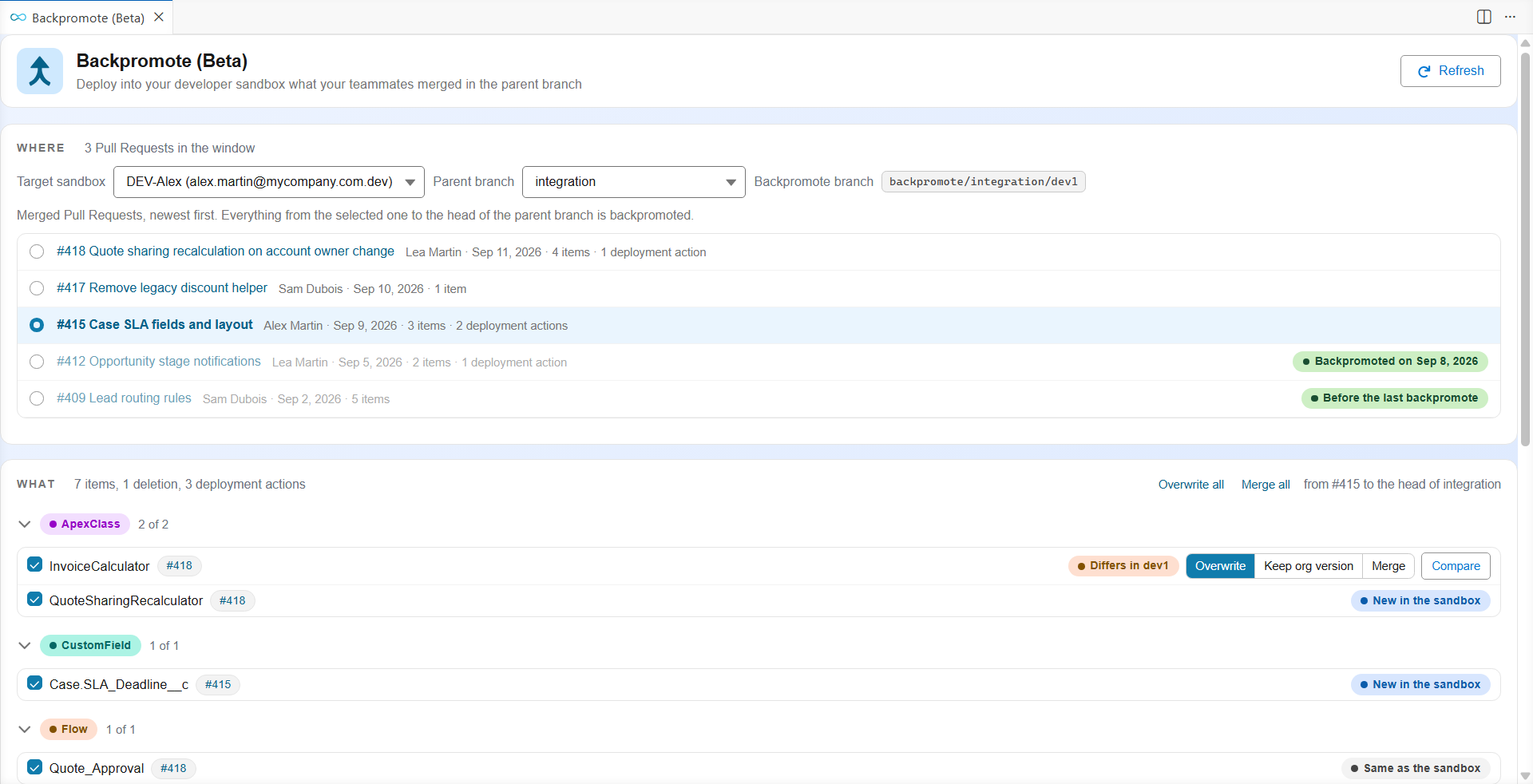
The merged Pull Requests are listed newest first:
- Backpromoted on (date): your sandbox already received it.
- Before the last backpromote: older, already covered.
- Before refresh: received by the sandbox before it was refreshed, so counted as not received.
The first Pull Request not backpromoted yet is selected: it and everything merged after it will be deployed. Select another one to start earlier or later, or click Show earlier Pull Requests. Click a Pull Request title or number to open it.
Step 3: review what will be deployed
The What block lists the metadata grouped by type, the deletions and the deployment actions. Everything is ticked; untick what must not go now (it will be offered again next time).
Each item says how it compares with your sandbox:
| Label | Meaning | What happens |
|---|---|---|
| New in the sandbox | The sandbox does not have it | Deployed |
| Same as the sandbox | Nothing changes | Deployed (no effect) |
| Differs in (sandbox) | Your sandbox has another version | You choose: see step 4 |
| Changed in the sandbox, not retrieved yet | Someone changed it in the sandbox | You choose: see step 4 |
| Deleted from the sandbox | A deletion merged in the parent branch | Deleted |
| Not deployed now | You unticked it | Left out, offered again next time |
Items of package-no-overwrite.xml carry a package-no-overwrite.xml marker. When your sandbox already has them they start unticked, so that its version is kept; tick one to deploy it anyway. When your sandbox does not have them yet, they are ticked like any other item.
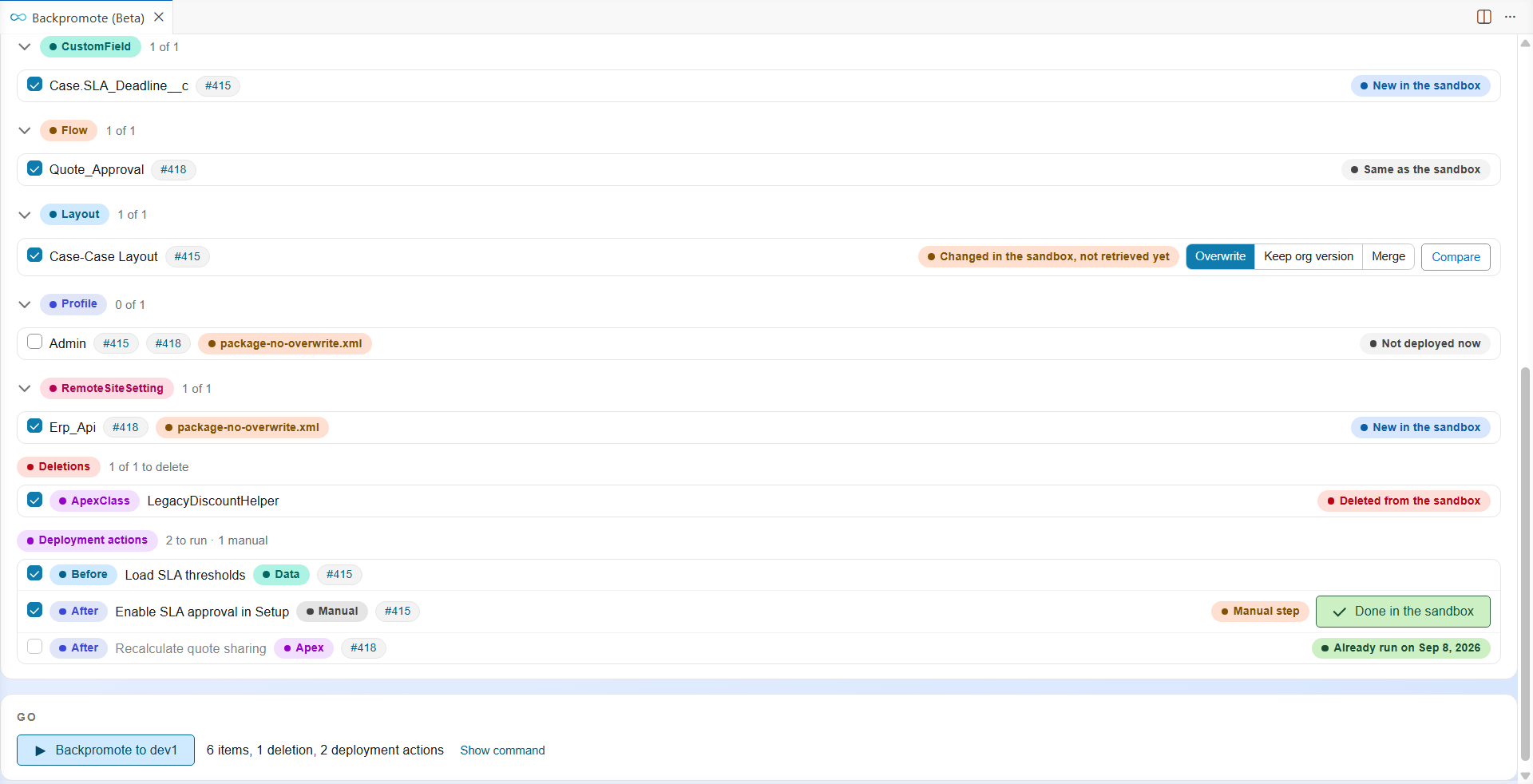
Deployment actions (data loads, Apex scripts, manual steps...) of the merged Pull Requests are listed with their state. An action never runs twice in the same sandbox: the ones already run are greyed with their date. A Manual step is done by hand in the sandbox, then confirmed with Done in the sandbox.
Step 4: decide for the items that differ
When your sandbox holds a version of an item that differs from the parent branch, choose on its line:
- Overwrite (default): the parent branch version is deployed.
- Keep org version: the item is left out, your sandbox version stays, and the item is offered again next time.
- Merge: keep both versions. The file is written with conflict markers and the VS Code merge editor opens: solve the conflicts and save.
Compare opens the VS Code diff editor between the two versions. Overwrite all sets Overwrite everywhere.
The Backpromote button stays disabled while a file still holds conflict markers.
Step 5: backpromote
Click Backpromote to (sandbox). A window shows each step while it runs:
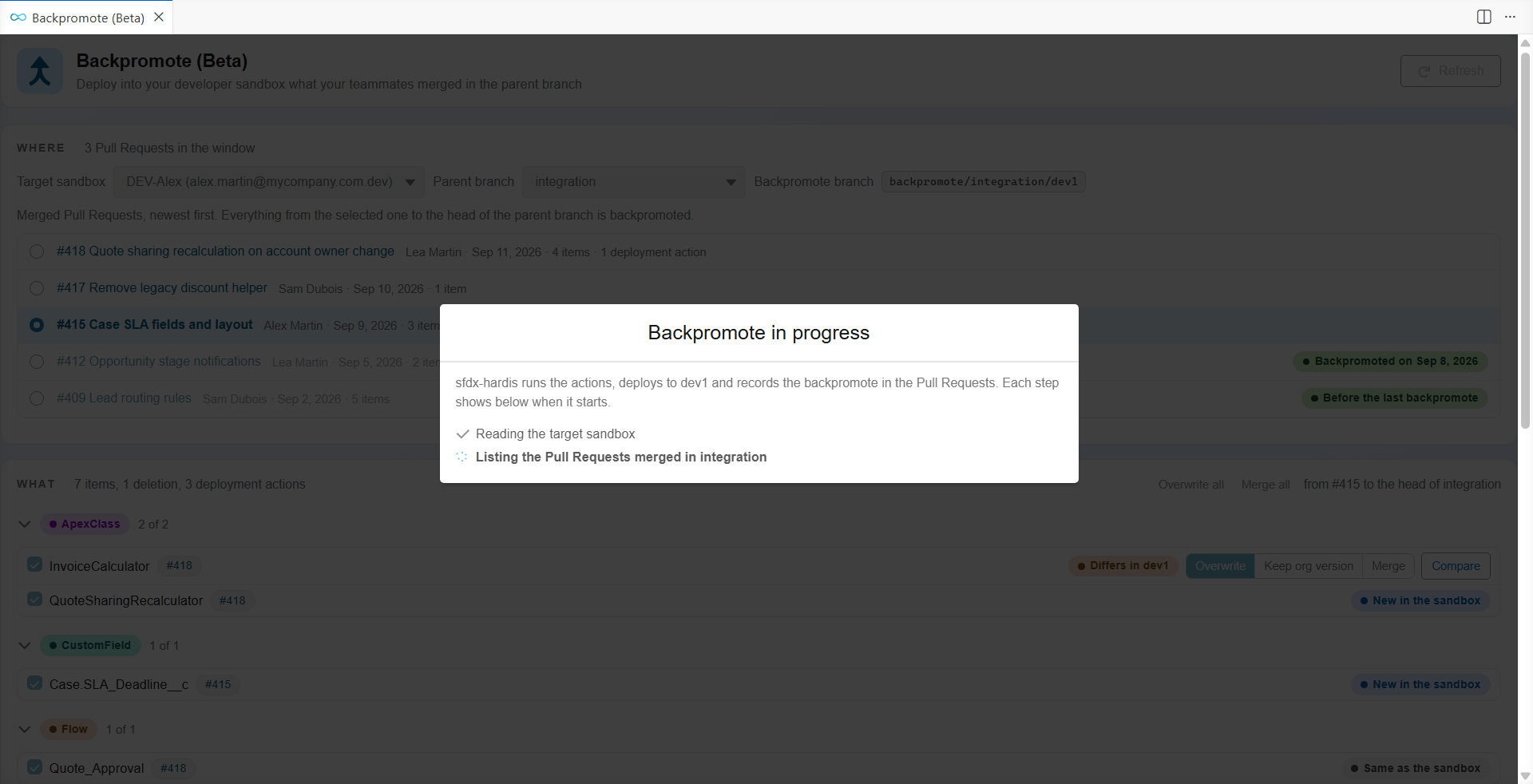
When it is done, the panel shows what was deployed and deleted, the actions run, and the Pull Requests updated:
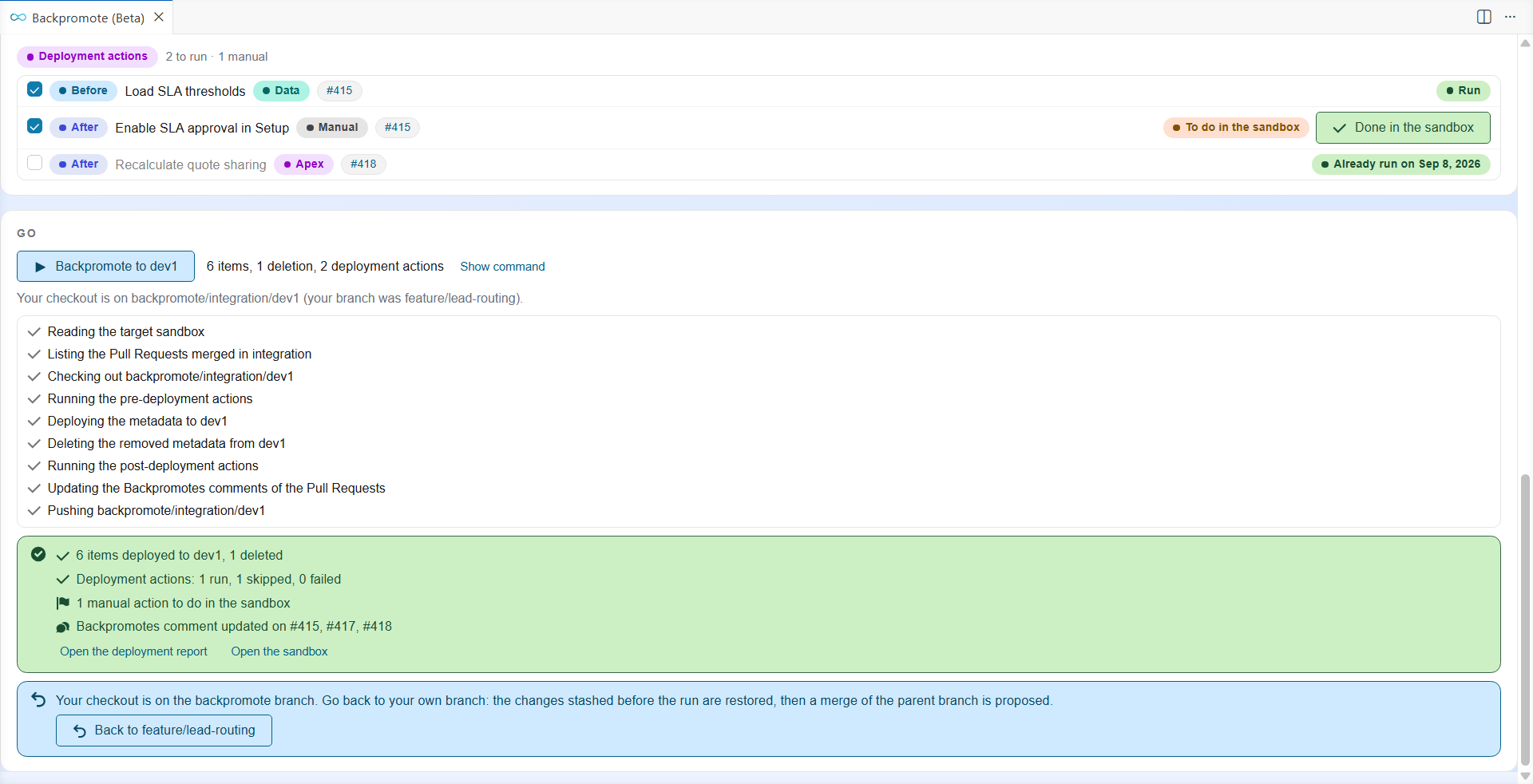
Your checkout stays on the backpromote branch. Click Back to (your branch) to return to your User Story branch: the changes set aside before the run are restored, and a merge of the parent branch is proposed so that your next save does not commit the backpromoted metadata as your own work.
If the deployment fails
The panel shows each component the sandbox refused, with its file, the Salesforce error, and an sfdx-hardis hint explaining the usual cause and how to fix it (with a link to its documentation). When the AI deployment assistant is configured, its suggestion is shown too.
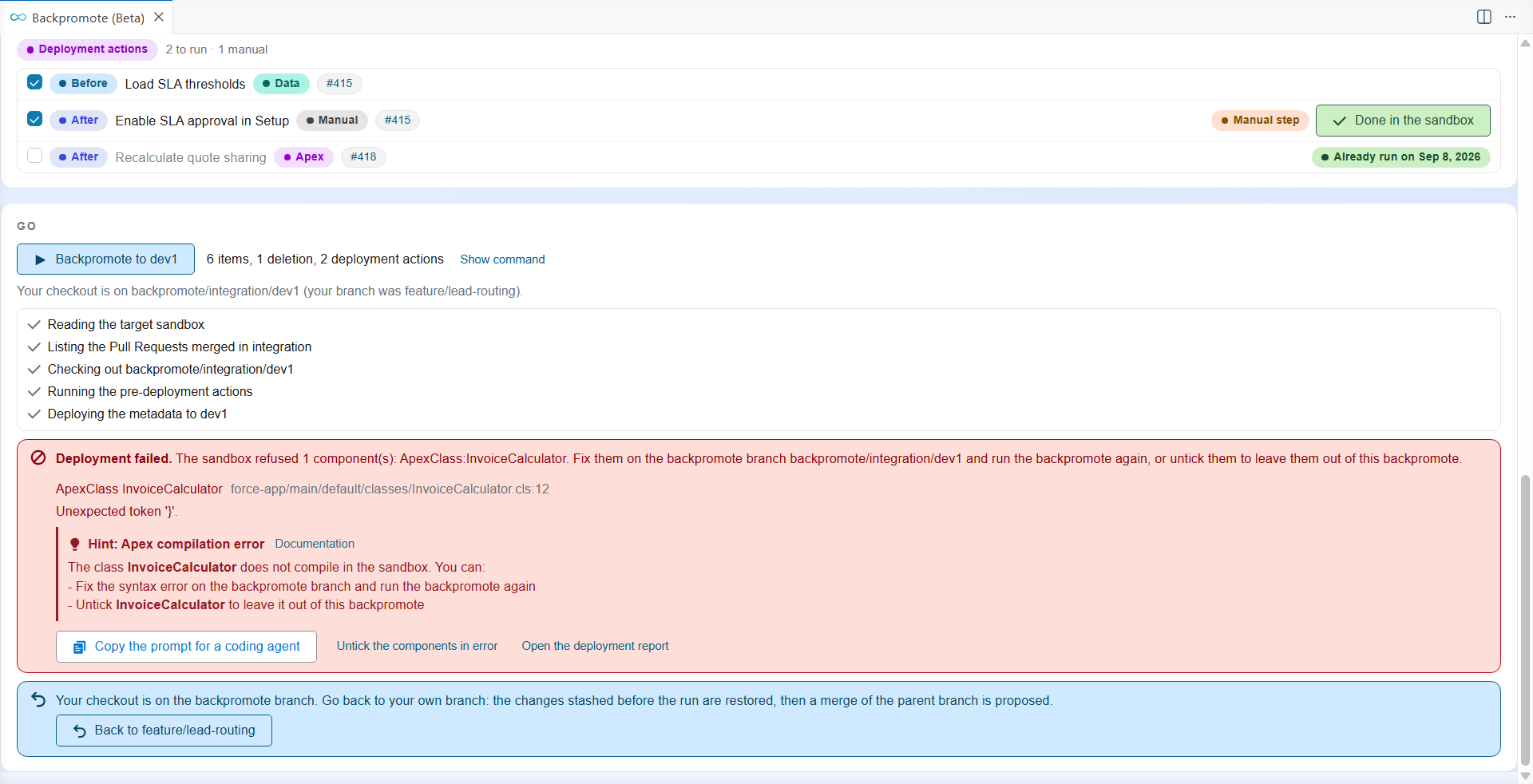
Then either:
- Fix the components in the files of your checkout, which is on the backpromote branch, commit them there, and click Backpromote again.
- Leave them out: click Untick the components in error, then Backpromote again.
Open the deployment report shows the full deployment output.
In the panel, with a coding agent
Follow the steps by hand, and hand the two technical parts to a coding agent:
-
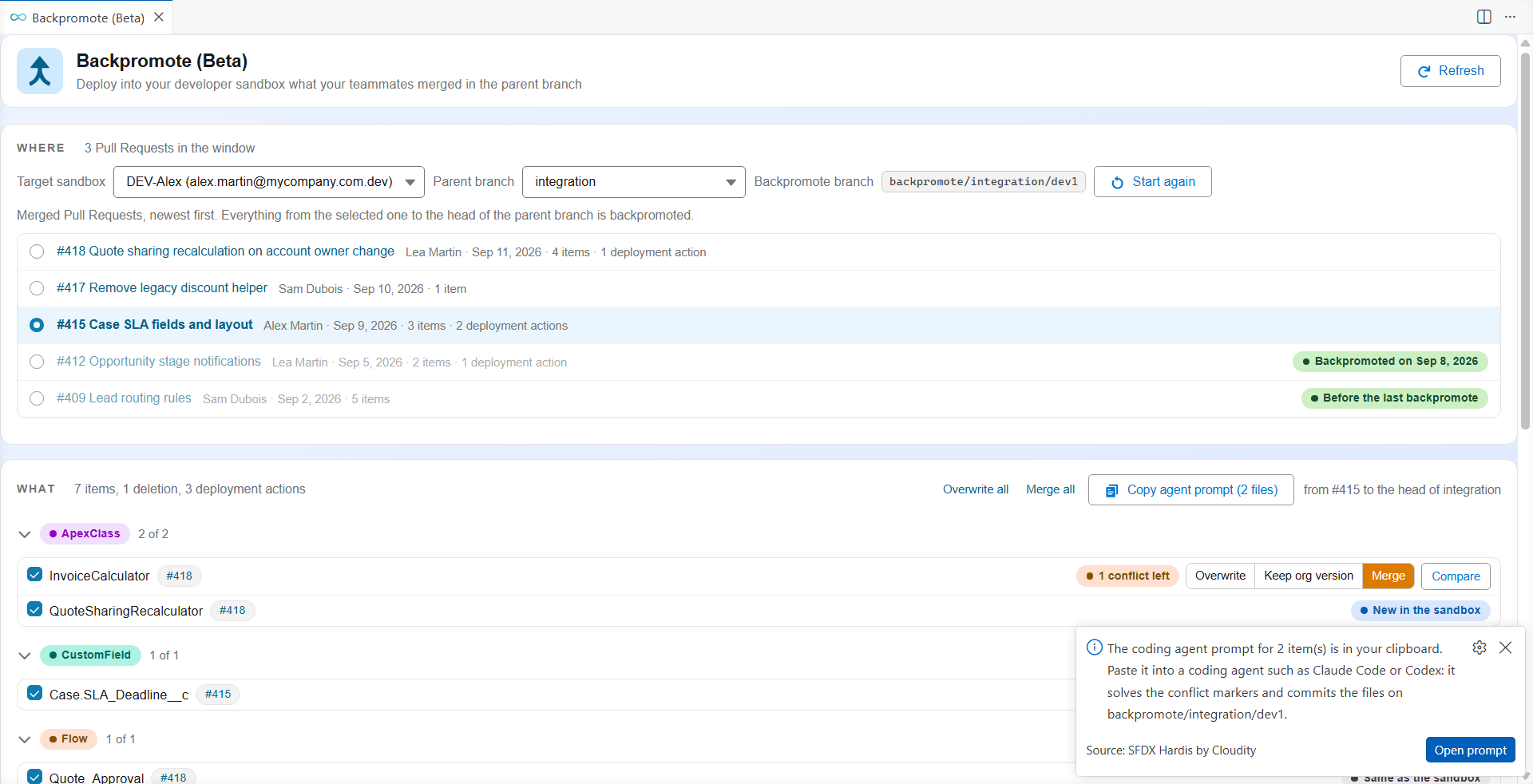
Merges. At step 4, click Merge all. Every ticked item that differs is prepared with conflict markers, and a prompt is copied to your clipboard. Paste it into your coding agent: it solves the conflicts and commits the files on the backpromote branch. Copy agent prompt copies that prompt again if needed.
-
Backpromote. Once the agent is done, the markers are gone: click Backpromote.
- Deployment errors. If the deployment fails, click Copy the prompt for a coding agent and paste it into your agent. The prompt holds the components in error, their files, the Salesforce errors and the sfdx-hardis hints. The agent fixes the components on the backpromote branch and commits them. Then click Backpromote again. Repeat until the backpromote succeeds, or untick what cannot be fixed now.
Fully with a coding agent
Paste this prompt into your coding agent, opened at the root of your repository, after replacing dev1 with your sandbox alias and integration with your parent branch. The agent drives sf hardis:work:backpromote from the plan to the result, and asks you before each decision.
Backpromote into my developer sandbox what the team merged in the parent branch, with sfdx-hardis.

- Target org: dev1
- Parent branch: integration

First run `sf hardis:work:backpromote --help` and read its "Agent Mode" section. Then:

1. Plan: run `sf hardis:work:backpromote --plan --json --target-org dev1 --parent-branch integration`.
   Show me the Pull Requests of the window, the items, the deletions and the deployment actions,
   and list the files whose sandbox version differs (comparison entries with status "different"
   or "pendingInOrg").
2. Decide: for each file that differs, read its sandbox, parent branch and base versions (paths
   given in the plan). Propose "git" (overwrite), "org" (keep the sandbox version) or "merge"
   (keep both), explain why, and wait for my answer.
3. Run: `sf hardis:work:backpromote --agent --json --run-id <runId of the plan> --target-org dev1
   --parent-branch integration --from-pull-request <start of the plan>`, with one
   `--on-diff "<file>=git|org|merge"` per decision.
4. If the status is "waitingForMerges": solve the conflict markers of the files listed (keep both
   sides, keep the XML well-formed), commit them on the backpromote branch with a message body that
   explains each merge, then run the "runCommand" of the JSON.
5. If the status is "deployFailed": read "result.deployErrors" (with their sfdx-hardis hints) or the
   file in "result.deployErrorsPromptFile". Fix the components on the backpromote branch only,
   commit, and run the same command again. If a component cannot be fixed now, ask me whether to
   leave it out with `--exclude-metadata Type:Name`.
6. When the status is "ok": tell me what was deployed, the Pull Requests updated, and the manual
   actions left to do by hand in the sandbox ("result.actions.pending").

Never deploy to another org, never commit outside the backpromote branch, and never push yourself.
The command itself refuses production and the orgs of major branches, and records the backpromote on the Pull Requests like the panel does. Outside the panel, the git provider token must be in the environment of the command: GITHUB_TOKEN, CI_SFDX_HARDIS_GITLAB_TOKEN, SYSTEM_ACCESSTOKEN (Azure DevOps) or CI_SFDX_HARDIS_BITBUCKET_TOKEN.
Other situations
You have uncommitted changes
Before switching to the backpromote branch, the panel asks what to do with them: Commit them on my branch (with a message), or Stash them, restored by Back to my branch.
You come back later
Close VS Code, go for lunch, come back: when you open the panel again while your checkout is on the backpromote branch, the backpromote goes on where you left it. The sandbox, the parent branch, the start, your ticks and decisions, the prepared merges and the last deployment errors are all kept.
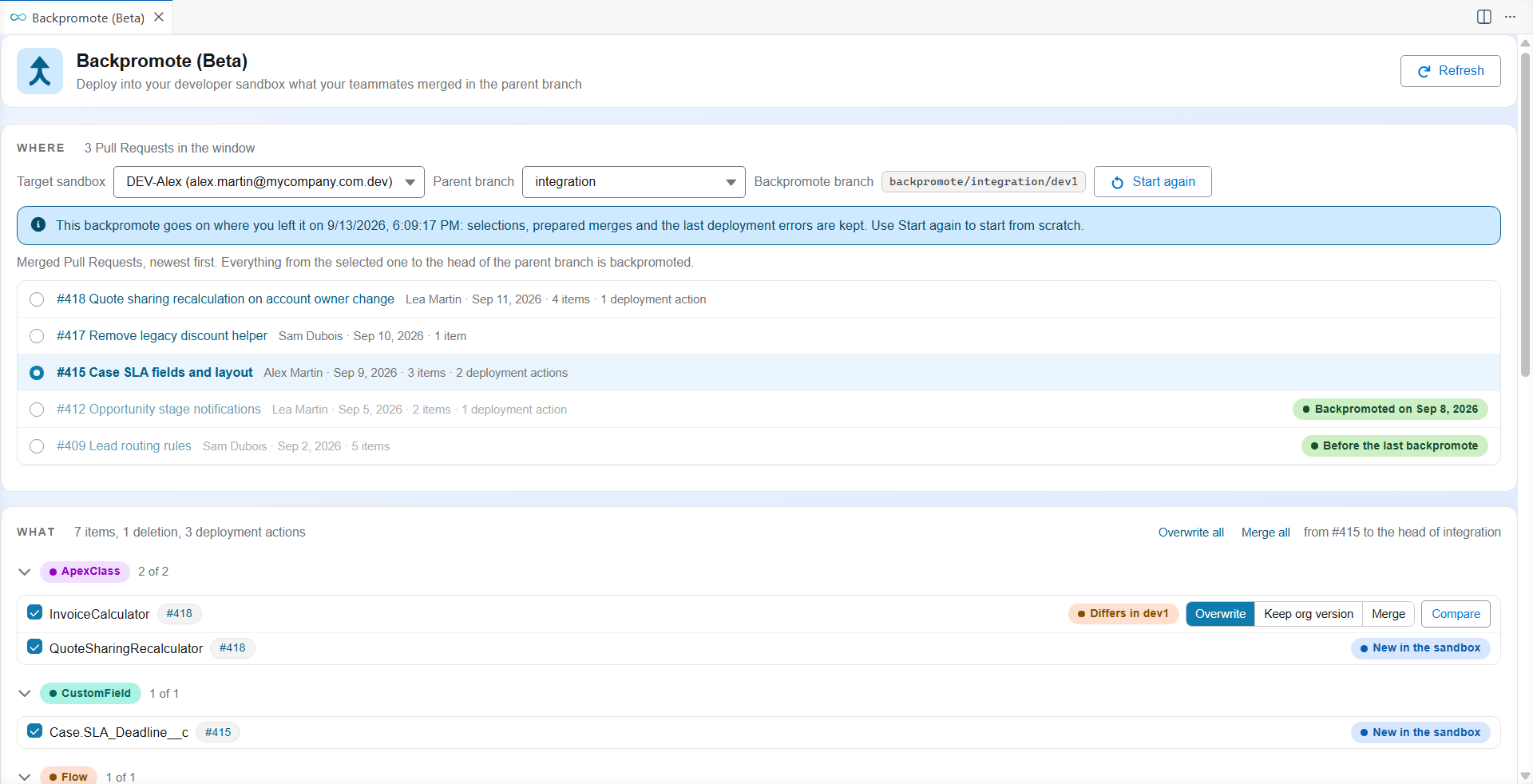
To start from scratch instead, click Start again: the backpromote branch is deleted (with its prepared merges), and a new plan is computed. The history recorded on the Pull Requests is kept.
Several people use the same sandbox
Nothing needs to be shared by hand. Each backpromote writes a row for the sandbox in a "Backpromotes" comment on every Pull Request it deployed. The next backpromote, from any computer, reads those comments and starts after the last Pull Request received.
Your sandbox was refreshed
A refreshed sandbox is a new org. Its previous backpromotes are shown as Before refresh, so no start is selected for you: pick the first Pull Request to deploy. The deployment actions count as not run yet.
From a terminal, without an agent
sf hardis:work:backpromote --target-org dev1
The command asks the same questions as the panel. --plan --json returns the plan without deploying anything, and --auto takes every decision from the flags. See the command page for all the flags.
What a backpromote never does
- Deploy to production, or to the org of a major branch.
- Commit on a major branch or a promotion branch. It only commits on its own backpromote branch, and on your User Story branch only when you choose to commit your uncommitted changes.
- Run a deployment action twice in the same sandbox.
- Deploy a file that still holds conflict markers.
- Overwrite the sandbox version of a
package-no-overwrite.xmlitem you did not tick.
Configuration
| Setting | Where | Meaning |
|---|---|---|
developmentBranch, availableTargetBranches |
config/.sfdx-hardis.yml |
The parent branches you can backpromote from. |
backpromoteScanLimit |
config/.sfdx-hardis.yml |
How many merged Pull Requests are read to find the last backpromote of a sandbox (default 100). |
| Branch rules | Git provider | Pushes to backpromote/* branches must be allowed, and no CI/CD job should run on them. |
Technical explanations
Vocabulary
| Term | Meaning |
|---|---|
| Window | The start Pull Request and everything merged after it, up to the head of the parent branch. |
| Backpromote branch | backpromote/<parent branch>/<sandbox name>, created from the parent branch. It only holds the merges made by hand and the fixes committed after a failed deployment; the deployment runs from it, and it is pushed when it holds such commits. hardis:work:save refuses to run from it. |
| Sandbox name | Read from the instance URL (mycompany--dev1.sandbox.my.salesforce.com gives dev1), else from the username, else the org id. --sandbox-name overrides it. |
| "Backpromotes" comment | Found by the hidden marker <!-- sfdx-hardis backpromotes -->. It holds a hidden JSON block and two tables: one row per sandbox (name, org id, date, user, parent branch, complete or partial with the items left out) and one row per deployment action run. |
How the plan is computed
- Checks: a git provider token, a target org that is a developer sandbox or a scratch org (not production, not an org declared for a major branch in
config/branches), and an allowed parent branch. - History: the merged Pull Requests of the parent branch are read newest first, in batches sized for the git provider, until one holds a row for this sandbox and org id. The next one is the default start. When a merge brought several Pull Requests (a retrofit of
mainintointegration), each Pull Request gets the files of its own merge commit. - Delta: sfdx-git-delta computes what the window deploys and deletes. The deployment actions come from
scripts/actions/.sfdx-hardis.<PR>.ymlof each Pull Request. - Comparison: the items are retrieved from the sandbox into a blank sfdx project, in source format, and compared with the parent branch version. Files the org shows as unchanged since the previous plan (source tracking revision, or metadata list dates) are reused from a cache per org id;
SFDX_HARDIS_BACKPROMOTE_RETRIEVE_CACHE=falseturns the cache off. - Merges: three-way with
git merge-filewhen the sandbox already received a backpromote (the base is the version at the start of the window), two-way otherwise.
How the run works
The working tree is committed or stashed, the checkout switches to the backpromote branch (another git worktree holding that branch is removed), the merged files are committed, then the pre-deployment actions run, the metadata is deployed with NoTestRun, the deletions are applied, the post-deployment actions run, the "Backpromotes" comments are written, and the branch is pushed with --force-with-lease when it holds commits of its own. A file still holding conflict markers is never deployed.
When the deployment fails, the refused components are returned with the tips of the sfdx-hardis deployment assistant, and a prompt for a coding agent is written in hardis-report/backpromote-deploy-errors-prompt-<runId>.md.
State on your computer
- The plan, the prepared merges and the comparison are cached under the temporary folder, in
sfdx-hardis/backpromote/, per run id. Deleting it loses nothing that matters. - The VS Code panel keeps, per workspace and backpromote branch, the choices and the last errors, to resume the backpromote when it is opened again on that branch.
- When
SFDX_HARDIS_PROGRESS_FILEis set (the panel sets it), each step is appended to that file as one JSON line.
Refreshed sandbox
A refreshed sandbox keeps its name but gets a new org id. Its old rows are history, not state: the Pull Requests show "Before refresh", nothing counts as received, and the deployment actions count as not run yet.